How to Find and Remove Infected WordPress Files
Worrying about infected files on your WordPress site? Well, you need to know what you’re actually dealing with before you can fix it. To find them, you need the right tools and a clear process.
After finding the infected files, you need to remove malicious code without touching the legitimate parts of your site. Our team at WP Guard is here to walk you through some practical steps to do exactly that.
First, we’ll cover the warning signs and scanning methods. Next, we’ll go through the WordPress malware removal process step by step. Let’s begin.
What Are WordPress Infected Files?
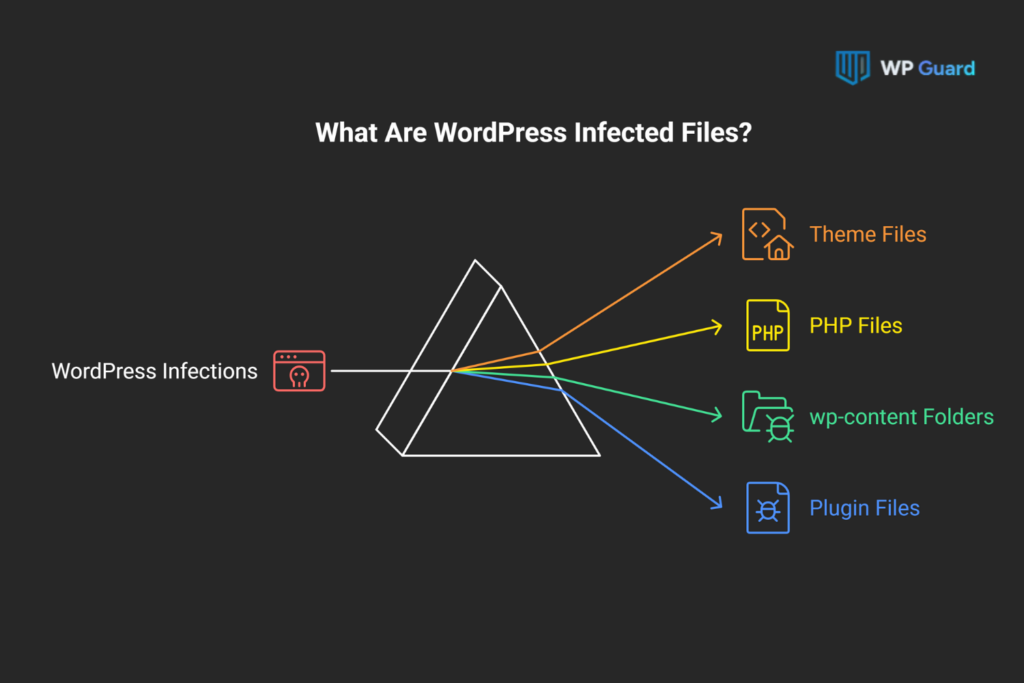
An infected WordPress file is any file in your WordPress installation that contains code placed there by an attacker. That code doesn’t belong in your WordPress installation.
These malicious files don’t just live in one spot. They turn up inside theme files, PHP files, wp-content folders, and even plugin files.
The numbers back this up too. In 2023, WordPress made up 95.5% of all detected CMS infections, according to Sucuri’s WordPress infections report. That’s a lot of sites carrying code they didn’t ask for.
The tricky part is that malicious code is often written to blend into normal PHP. It doesn’t always look out of place. Attackers deliberately write it that way, so it sits inside wp-content or other folders without triggering any obvious alarms.
Warning Signs: Your Hacked WordPress Site May Be Compromised
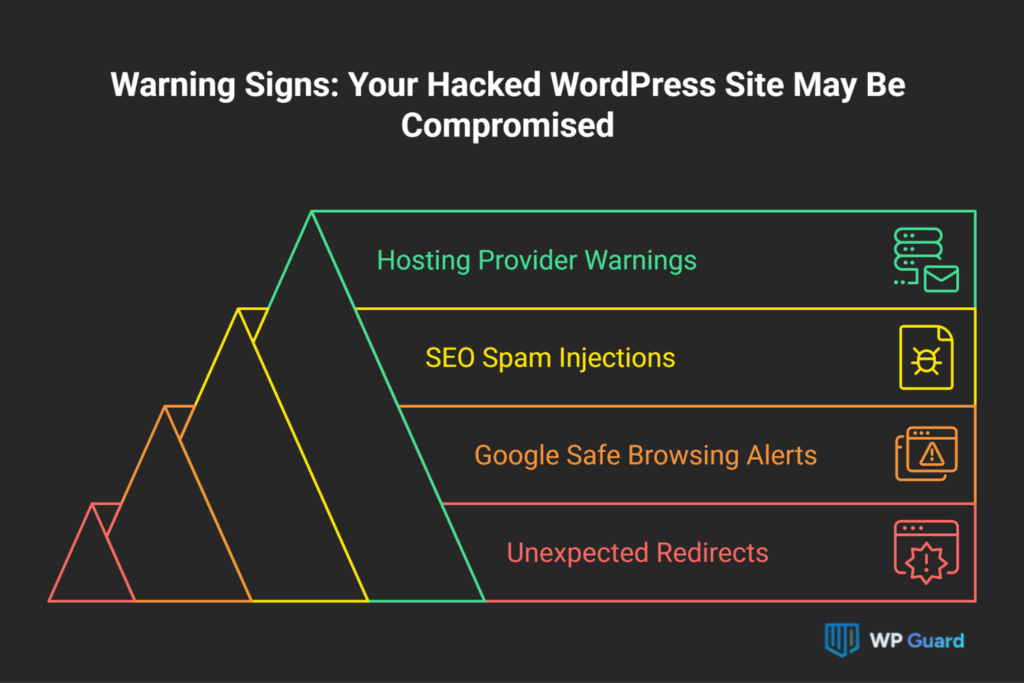
Some signs of a hacked WordPress site are hard to miss. Others stay completely hidden until search engines or your hosting provider flag them.
Here are the main things to watch for:
- Unexpected Redirects: Malicious redirect scripts push your site visitors to spam pages or unrelated websites without any interaction from them. This usually means these scripts are running inside your WordPress site without your knowledge.
- Google Safe Browsing Alerts: Google Safe Browsing flags your site with a “Deceptive site ahead” warning in Google Chrome. Since search engine crawlers quickly pick up on malware infection, a blacklisted site loses traffic almost overnight.
- SEO Spam Injections: Attackers inject spammy links into your pages to boost their own rankings. This kind of SEO spam is often invisible to you but fully visible to search engines.
- Hosting Provider Warnings: Your hosting provider sends an abuse notice or suspends your account after spotting unusual activity on the server. That’s usually a strong sign that malicious files are already in your WordPress installation.
If any of these sound familiar, your site likely needs a proper scan. The next section walks you through exactly how to do that.
How to Scan for Malicious Files in WordPress
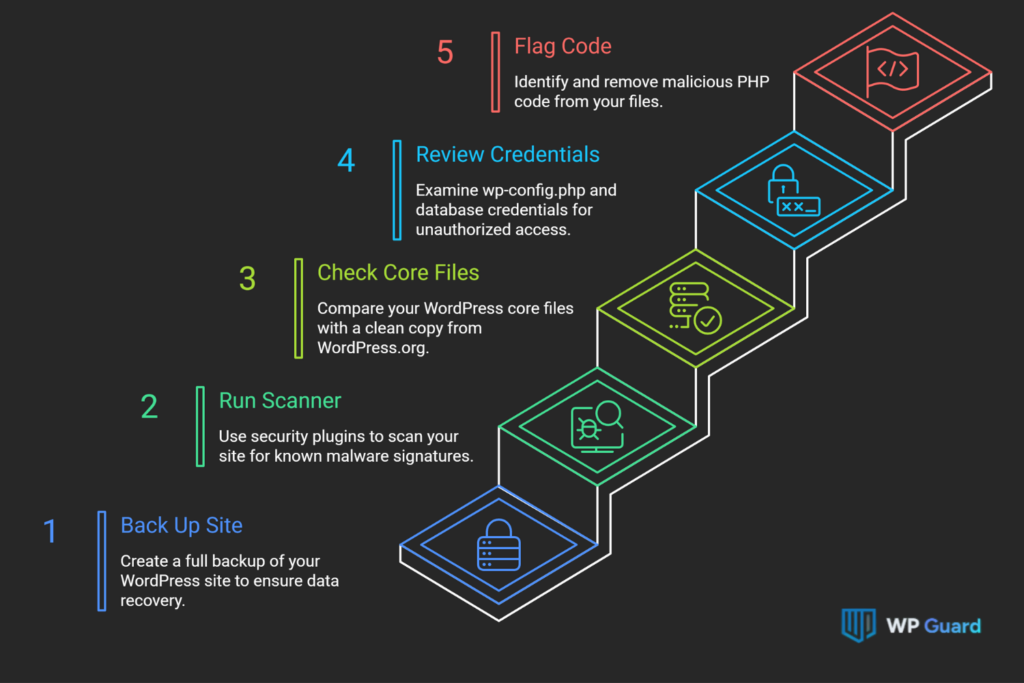
Finding malicious files on your WordPress site takes a clear process. If you skip a step, you risk missing hidden backdoors or leaving behind fragments of malicious code that reinfect your site all over again.
We suggest you follow these five steps to cover every corner of your installation.
Step 1: Back Up Your Site First
Before you touch a single file, you need a full backup. If something goes wrong during cleanup, a backup is the only thing that gets your WordPress site back to where it was.
Use a plugin like UpdraftPlus or your hosting provider’s built-in backup tool to grab a full copy of your site. That means your database, your wp-content folder, and all your core files. Don’t leave any of it out.
Put your site in maintenance mode while you do this. The WP Maintenance Mode plugin handles that in a couple of clicks, so site visitors don’t land on a broken page mid-process. Your hosting environment may also have a one-click snapshot feature worth checking before you start.
Step 2: Run a Malware Scanner
A good malware scanner does the heavy lifting, checking thousands of WordPress files in minutes against known malware signatures. That’s something you simply can’t do by hand at the same speed.
Security plugins like Wordfence and MalCare scan your entire WordPress site, including your wp-content/plugins folder and installed plugins, for anything suspicious. You can also try our free WordPress scanner for a quick check without installing anything. Run the scan from both your WordPress dashboard and your hosting control panel for the fullest picture.
MalCare runs its scans on its own servers rather than yours, so it won’t slow down your WordPress site during the process. That’s worth knowing if you’re on shared hosting.
Step 3: Check Core Files in Your WordPress Installation
Core WordPress files are a frequent target for attackers. The fastest way to catch injected code is to compare your current installation against a clean copy from WordPress.org.
Download a fresh copy of WordPress and place it alongside your existing files. Any file that doesn’t match the original WordPress core files is worth a closer look. Pay extra attention to recently modified files, since attackers often touch those last to cover their tracks.
Files like wp-login.php and index.php are common spots for injected malicious code. If an existing file looks different from the clean version, don’t assume it’s a legitimate update. Treat it as suspicious until you can confirm otherwise.
Step 4: Review Database Credentials and Config Files
Your wp-config.php file holds your database credentials, and it’s one of the first places attackers go after getting into a WordPress installation. If that file is compromised, your entire site is at risk.
Open wp-config.php and look for unfamiliar code blocks, base64-encoded strings, or extra WordPress admin accounts you didn’t create. Failed login attempts in your log file can also point to someone trying to get into your wp admin panel through brute force. Change your hosting provider account password right away if anything looks off.
On top of that, file permissions on wp-config.php should be set to 440 or 400. That stops other users on the same server from reading your database credentials without authorization.
Step 5: Flag Malicious Code in PHP Files
Knowing what malicious PHP code looks like helps you spot it fast, even when it’s buried deep inside a plugin folder. The most common patterns are PHP functions like eval(), base64_decode(), and gzinflate(), which attackers use to hide and run malicious scripts.
You can search for these strings using a file manager inside your hosting control panel or through file transfer protocol software like FileZilla. Run a search across all PHP files in your WordPress installation and look for suspicious file names or anything that doesn’t belong.
Attackers also hide code inside the .htaccess file or drop extra PHP files into your uploads folder. Check those spots too, since they’re easy to overlook during a standard scan.
Infected WordPress Site: What to Do After Finding Malware Files
So you’ve run the scan, and the infected files are staring back at you. Don’t panic. The WordPress malware removal process is straightforward once you know which files are affected and how far the infection has spread across your site.
Start with the clearly malicious files first. Delete any affected files that don’t belong in your WordPress installation at all. Then replace infected core files with clean versions downloaded directly from WordPress. Don’t try to manually edit those core files unless you know exactly what you’re removing. One wrong deletion can take your entire site offline.
So, make sure to put your site into maintenance mode before you start removing anything. That keeps your wp admin area accessible to you while keeping the front end offline for everyone else.
After the malware removal is done, close every security hole you can find. Change your WordPress password, your FTP credentials, and your database password right away. Any of those left unchanged gives an attacker a free pass back in through the same door they used the first time.
How Malicious Code Gets Into WordPress Sites
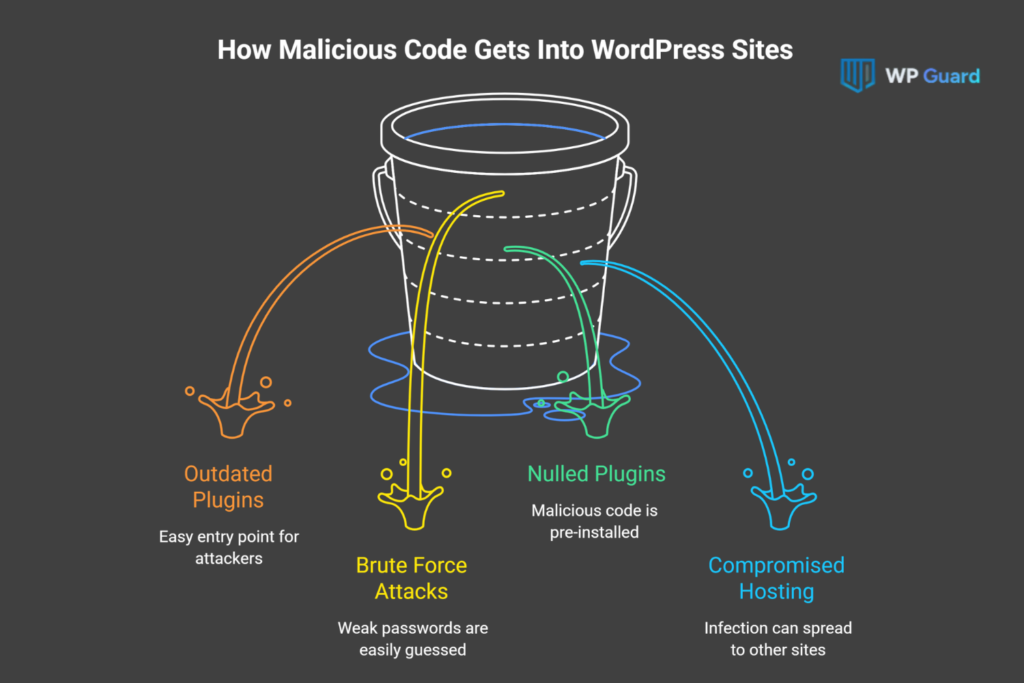
A lot of site owners are surprised to find out their own plugins or passwords opened the door for attackers. Look, WordPress malware doesn’t usually come from nowhere. It gets in through specific weak points that are easy to overlook. Let’s explore the four most common ones.
- Outdated Plugins and Themes: Unpatched plugins and themes are the number one entry point for WordPress malware on WordPress websites. Attackers actively scan for sites running old plugin versions, and once they find one, getting in takes very little effort.
- Brute Force Attacks: Attackers hammer your WordPress site’s login page with thousands of username and password combinations until one works. Default usernames like “admin” combined with weak passwords make brute force attacks almost trivially easy to pull off.
- Nulled Plugins: Pirated versions of premium plugins almost always carry pre-installed malicious code. The infection can sit dormant for weeks before it activates, so you won’t always spot it through a file upload check or a quick visual scan.
- Compromised Hosting Environments: If another WordPress site on the same server gets infected, yours can be at risk too. Weak security features give malicious code a path to spread, consuming server resources across the entire hosting environment.
That said, every one of these entry points is preventable. The next section covers what to do once the damage is already done.
Cleaning vs. Restoring: Which Option Fits Your Situation?
The right call between cleaning and restoring depends on how far the infection has spread across your WordPress installation. And honestly, it’s not always obvious which one makes more sense until you actually look at the damage.
Now, we’ll let you know which path to take on a hacked WordPress site upfront saves you a lot of wasted time.
| Manual Cleaning | Full Restore | |
| Best for | One or two malware files in specific folders | Infection spread across all the files |
| Time required | Two to four hours | Under one hour |
| Technical skill | Intermediate to advanced | Beginner friendly |
| Risk level | Higher, easy to miss hidden backdoors | Lower, starts from a clean slate |
| Web server impact | Files modified one by one | Entire WordPress installation replaced |
| Latest version needed | Yes, update after cleaning | Yes, update after restoring |
Manual cleaning works well when the malware removal is contained to a couple of plugin files or a modified theme file. That said, if the scan shows malware files scattered across your web server in multiple directories, a full restore from a clean backup is the faster and safer call.
Keep in Mind: restoring from a backup that was taken after the infection just puts the malicious code right back on your site. Always confirm your restore point predates the breach before you start the WordPress malware removal process.
Can Your Hosting Provider Help With This?
Your hosting provider can be a solid first call when infected files show up on your WordPress site. Many managed hosting environments include server-level malware scanning and basic WordPress security features as part of their plans. It’s worth checking what yours actually covers before you assume you’re on your own.
In reality, not every hosting provider offers hands-on malware removal. Some will flag the infection and suspend your account, then leave the actual cleanup to you. In those cases, site owners need either the technical skills to handle it themselves or a dedicated service to step in.
For professional WordPress malware removal, our team at WP Guard handles the full process, from locating infected files to restoring a secure hosting environment. Check out our WP Guard services to see exactly what’s covered.
Don’t Let Infected Files Sit. Act Now.
You now have everything you need to find and remove malware from an infected WordPress site. The longer those infected files stay in place, the more damage they do to your WordPress security, your search engine rankings, and the trust your visitors place in your site.
A few things to lock in after you remove malware: tighten your file permissions, set up Google Safe Browsing alerts, and request a review through Google Search Console if your site was flagged. Google Chrome will show a warning to every visitor until that review clears, so don’t skip it.
Site owners who want to skip the manual work entirely can hand it off to WP Guard. Our team handles the full WordPress malware removal process and keeps an eye on your WordPress site around the clock, so you don’t have to.