How to Reinstall WordPress Core Without Losing Your Content
You can reinstall WordPress core by replacing damaged system files. That too without losing a single post, page, plugin, or media file, as long as you follow the right steps. The process replaces only the broken core files underneath your site, so everything your visitors see stays exactly where it is.
Most of the sites that come through WP Guard‘s security scanner show core file issues that could’ve been fixed with a clean reinstall months earlier. And catching it late always costs more. So read this guide because we’ll explain:
- The reasons for reinstalling WordPress core files
- How to confirm the core is where your problem lives
- Four reliable methods to reinstall WordPress core on any setup
By the end, you’ll know exactly which method fits your situation and how to run it safely.
Why Would You Need to Reinstall WordPress Core?
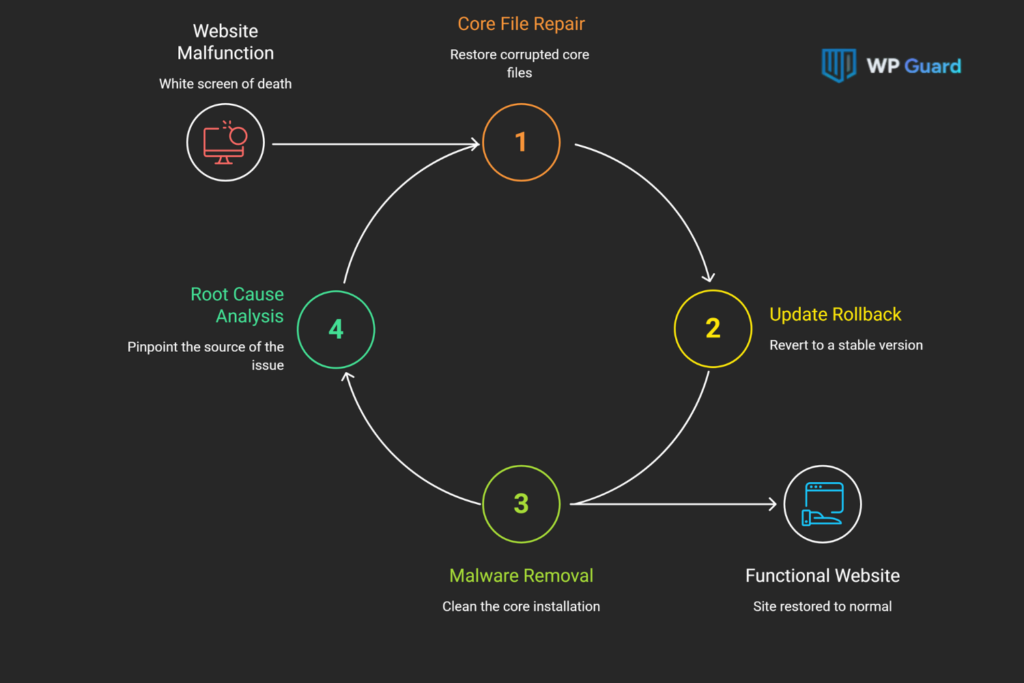
You may need to reinstall WordPress core when damaged or modified files affect your site’s security, performance, or normal operation.
This might sound like a nuclear option, but reinstalling the core WordPress files doesn’t wipe your site. It replaces only the broken engine underneath it (so again, no need to worry).
Here are the three situations where reinstalling WordPress core makes sense:
Core Files Got Corrupted, or an Update Failed
Failed or interrupted updates can leave mismatched file versions that throw PHP errors or blank screens. A download that stops midway leaves a mix of old and new files on your server, so the WordPress installation ends up in a broken in-between state.
From that point, symptoms show up pretty quickly:
- White Screen of Death: Your site loads a completely blank page with no error message, content, or dashboard access. It happens when a corrupted PHP file stops WordPress from executing the page load entirely.
- Critical Error Notices: WordPress displays a message saying “There has been a critical error on your site.” This points to a PHP fatal error in one of the core files, and it often locks you out of wp-admin at the same time.
- A wp-admin That Won’t Load: Instead of your login screen, you get a parse error or a redirect to a broken page. This usually means a core file inside wp-admin got partially overwritten during a failed update.
Reinstalling the core files in this situation will replace every affected file with a clean, version-matched copy.
Malware Got Into Your Core Installation
Attackers inject malicious code directly into core PHP files like wp-login.php or files inside wp-includes (and the damage shows up well after the fact). This difference between a core file infection and a plugin infection is more important than it seems because they require different fixes. Reinstalling just the themes or plugins won’t fix all of it.
At that time, a clean reinstall replaces the compromised WordPress core files without touching wp-content or your database.
You Can’t Pin Down What’s Breaking the Site
If deactivating plugins and switching themes hasn’t fixed the problem, core files are the next suspect. A WordPress core reinstall can confirm whether modified system files are causing the issue by replacing them with clean versions.
We’ve worked through many compromised WordPress installs, so we know that reinstalling core gives you a clean baseline. And you can basically rule out the core as the source. It’s a last-resort step, though, not a first one.
Is It Actually a Core File Problem?
Most WordPress errors look like core problems, but the real cause might be a plugin conflict or a database issue. Before you reinstall anything, it’s worth taking ten minutes to cover your bases and confirm where the problem truly lives. That single step saves you from replacing files that were never broken.
Use this table to match what you’re seeing on your site to its most likely cause:
| Symptom | Likely Cause | Check This First |
| White screen, no error shown | Core file corruption or PHP error | Enable WP_DEBUG in wp-config.php |
| wp-admin loads but front end breaks | Theme or plugin conflict | Deactivate all plugins via FTP (File Transfer Protocol) |
| Errors inside wp-admin and wp-includes | Corrupted core WordPress files | Run wp core verify-checksums |
| Site redirects or shows unknown scripts | Malware in core files | Check digital fingerprint via WP CLI |
| “Error establishing a database connection” | Database issue, not core files | Check wp-config.php credentials |
So how does the verify-checksums check actually work? WordPress.org publishes an official checksum for every core file in every version you install. Here, a checksum is a digital fingerprint (tedious, yes, but it takes about 30 seconds to find out).
This way, when you run wp core verify-checksums via the command-line tool, it compares each file on your server against that published record.
If a file doesn’t match, you’ll see exactly which core WordPress files are modified or corrupted. That tells you whether you’re dealing with a core problem or something else entirely. Plus, you can check WordPress integrity before committing to a full reinstall.
How Do You Reinstall WordPress Core Files?
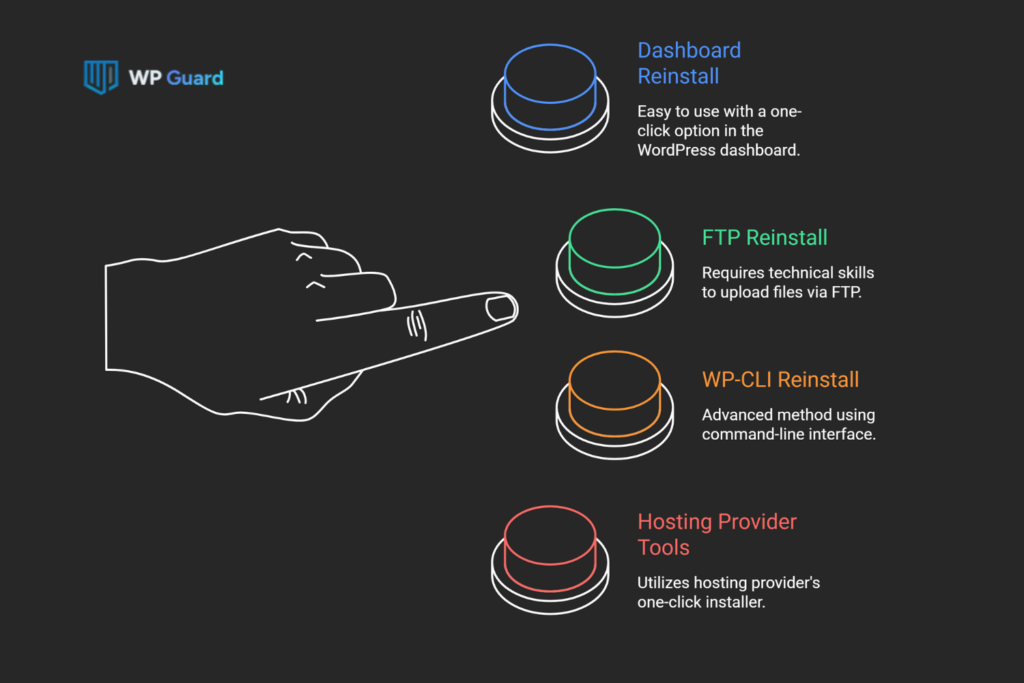
There are three reliable ways to reinstall WordPress core: through the WordPress dashboard, using WP-CLI, or manually replacing the core files via FTP.
The right way depends on what you can still access. If your WordPress dashboard is up, you won’t need FTP or a command-line tool at all. But if you’re locked out, the other methods get you back in without touching a single post or page. Below you’ll see how to reinstall the core WordPress software.
Reinstall Directly from the WordPress Dashboard
This is the fastest method available, and it works without any FTP access or technical setup. Simply go to your WordPress dashboard, then click:
Dashboard > Updates > Re-install Now
WordPress will automatically download a fresh copy of the current version and overwrite the existing core files on your server.
It won’t touch your wp-content folder, your database, or your active plugins and themes. Everything your visitors see stays intact.
Reinstall Core WordPress Files via FTP
Download the latest WordPress zip file from the official site and extract it on your computer. Before you upload anything, delete the wp-content folder from that extracted copy.
However, this is where most people go wrong. Skipping that deletion means your FTP program uploads the default themes bundled in the zip. And those overwrite any existing theme folder sharing the same name on your server.
To avoid that, connect via your FTP client and upload everything to your root folder, which is usually public_html in your hosting account. When the FTP program asks what to do with existing files, select the overwrite option.
Important Note: Never delete wp-config.php from your server during this process. This isn’t a minor detail by any stretch. It holds your database credentials, so losing it takes your site offline instantly.
Using WP-CLI to Reinstall the Core
WP CLI is a command-line tool that lets you manage your WordPress installation directly from the server. To reinstall the core, use the following command:
wp core download –skip-content –force
The cd command gets you into the right directory first. You can then use the change directory command to go to your WordPress root before running anything.
For your understanding, the “–skip-content” flag stops WordPress from downloading its default themes and plugins. Meanwhile, the “–force” flag overwrites the existing core files already on your server.
After it finishes, run wp core verify checksums to confirm every file’s digital fingerprint matches the official site record. At this point, a success message means your core WordPress files are clean.
Reinstall via Your Hosting Provider’s Tools
Many hosting providers include a one-click installer like Softaculous inside cPanel, and some offer a wp toolkit option as well. For this method:
- Find your WordPress installation in the installer
- Then look for a reinstall or repair option
Before you confirm, check that the overwrite existing installation setting is selected. The installer drops a fresh WordPress installation into a separate directory without it, instead of fixing your current one.
This method suits anyone locked out of wp-admin who isn’t comfortable with FTP or WP CLI.
What Should You Do After the Reinstall?
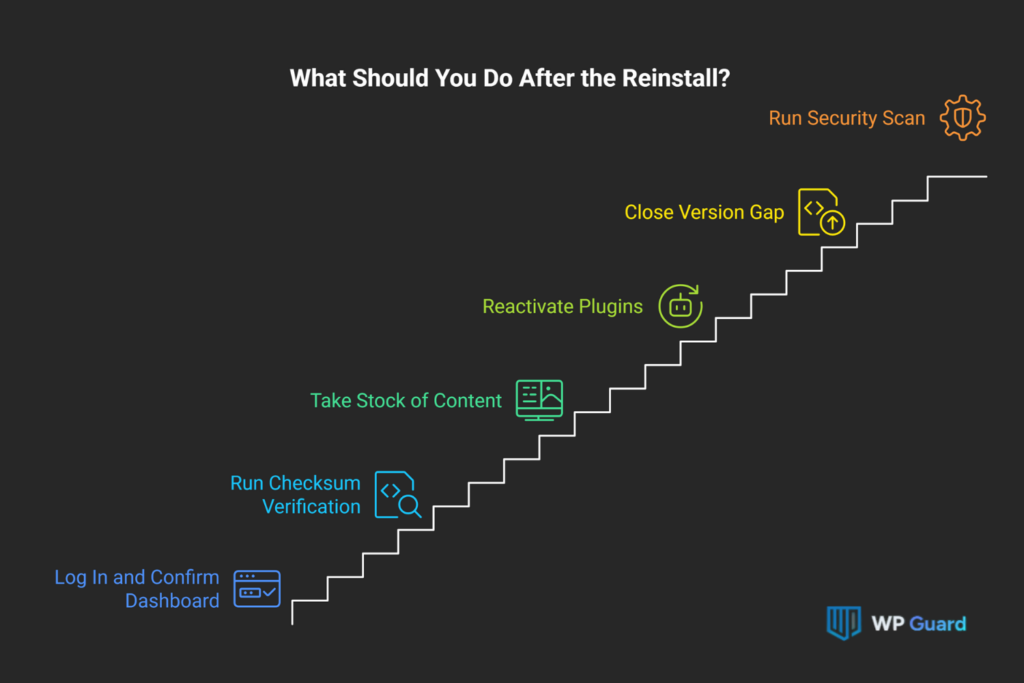
Verify wp-admin loads cleanly and run a checksum before reactivating plugins or making any other changes.
In our experience cleaning up broken WordPress sites, skipping this part is where most people create a second problem on top of the first. Just a few quick checks now can save you from wondering what went wrong an hour later.
Follow through these six tasks right after you reinstall WordPress core:
- Log In and Confirm wp-admin Loads: Open your WordPress dashboard first and check that every menu, setting, and page loads without a PHP error. If something looks off here, don’t activate anything else yet.
- Run a Checksum Verification: Any mismatch means a file didn’t reinstall cleanly. So use wp core verify checksums via WP CLI to confirm each core file’s digital fingerprint matches the official record.
- Take Stock of Your Content: Browse your WordPress site’s front end and click through several pages, posts, and menu links. From there, confirm your media files, widgets, and navigation are all displaying correctly.
- Reactivate Plugins One at a Time: While you’re at it, turn each plugin back on individually, then reload your site after each one. The moment something breaks, you’ve found your conflict without any guesswork involved.
- Close Any Version Gap: If you reinstalled an older version of WordPress, don’t forget to update to the current stable release right away. Running outdated core WordPress files leaves known vulnerabilities open on your server.
- Run a Full Security Scan: A core reinstall only replaces core files. That’s why wp-content, your uploads folder, and your themes need a separate scan. This step is non-negotiable if malware activated the reinstall.
That covers the post-reinstall process from login to security. Work through each step in order, and you’ll know within 20 minutes whether your WordPress installation is fully working properly again.
Done With the Reinstall? Here’s Your Next Move
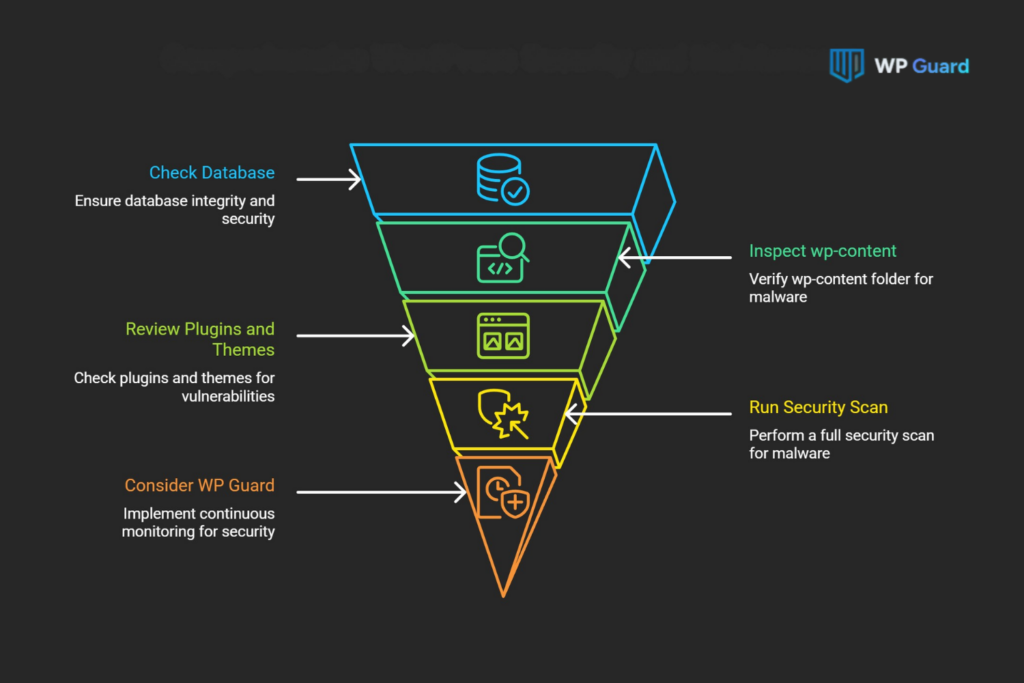
Reinstalling WordPress core gets your site back on stable ground, but it’s only one piece of the picture. Your database, wp-content folder, plugins, and themes all need a check too. So don’t close the tab once the core files are clean.
If malware has set off the reinstall, run a full security scan on your WordPress files before you reopen the site to visitors. Only a fresh copy of the core doesn’t guarantee the rest of your WordPress installation is clear.
As an option, try WP Guard. It can monitor your site around the clock, and corrupted or modified core files get flagged before they cause real damage. You can also browse our other articles for practical guidance on keeping your WordPress site secure, maintained, and working properly all year round.
Frequently Asked Questions About WP Core Reinstallation
We often hear some questions from site owners working through a WordPress core reinstall for the first time. The answers below are kept short and direct:
Does Reinstalling WordPress Core Delete My Posts and Pages?
No, it doesn’t. A core reinstall only replaces the WordPress core files inside wp-admin, wp-includes, and the root directory.
Your posts, pages, media, and comments all live in the database, and the database isn’t touched during a core reinstall. Your wp-content folder stays completely intact as well.
Can I Reinstall WordPress Core on Shared Hosting Without WP-CLI?
Yes, and it’s very simple. Shared hosting users can reinstall core files through the WordPress dashboard via Dashboard, then Updates, then Re-install Now.
If you don’t have dashboard access, your hosting provider’s cPanel file manager works as a direct alternative to an ftp client.
Is Reinstalling WordPress Core the Same as a WordPress Update?
They aren’t the same. Reinstalling the WordPress core replaces your current version of the file with a freshly installed copy of the same version number. A WordPress update moves your installation to a newer version entirely, so the two serve different purposes.
What Files Should I Never Delete When Reinstalling the Core?
Never delete wp-config.php, your wp-content folder, or your database during a core-only reinstall. The wp-config file keeps your database credentials, while wp-content holds your themes, plugins, and uploads. Similarly, the database stores every post, page, and user on your WordPress website.