What to Do When Google Flags Your Website as Unsafe
Google Safe Browsing checks billions of URLs daily for malware, phishing, and unwanted software. If it flags your site, users will see a big red warning screen in Google Chrome, Firefox, and other browsers.
The problem is that even legitimate websites can get flagged. An outdated plugin or a hacked file can trigger the warning. And once that warning shows up, your visitors, rankings, and trust all take a hit.
So, in this article, we’ll show you how to spot the security issues, clean your site, and remove the Google Safe Browsing warning for good.
Remove Google Safe Browsing Warning by Finding and Fixing the Root Cause
Start by identifying exactly what Google flagged on your site, then clean every affected file before you submit a review request. The faster you fix the root cause, the sooner you can get rid of the warning.
Here’s a step-by-step breakdown of how to find, fix, and verify every security issue on your site.
Sign In to Google Search Console and Review Security Issues
Log in to your Google Search Console account and click “Security & Manual Actions” in the left sidebar. Then select “Security Issues” to pull up the full report.
Here, Google will break down each threat by category and show you the affected URLs along with details about what it detected.
Make sure you go through every flagged page carefully. Some entries won’t show sample URLs, but that doesn’t mean it’s a false alarm. It just means Google found suspicious behavior it couldn’t tie to a specific page. So you’ll still need to scan those areas of your site yourself.
Common Reasons Google Flags a Website
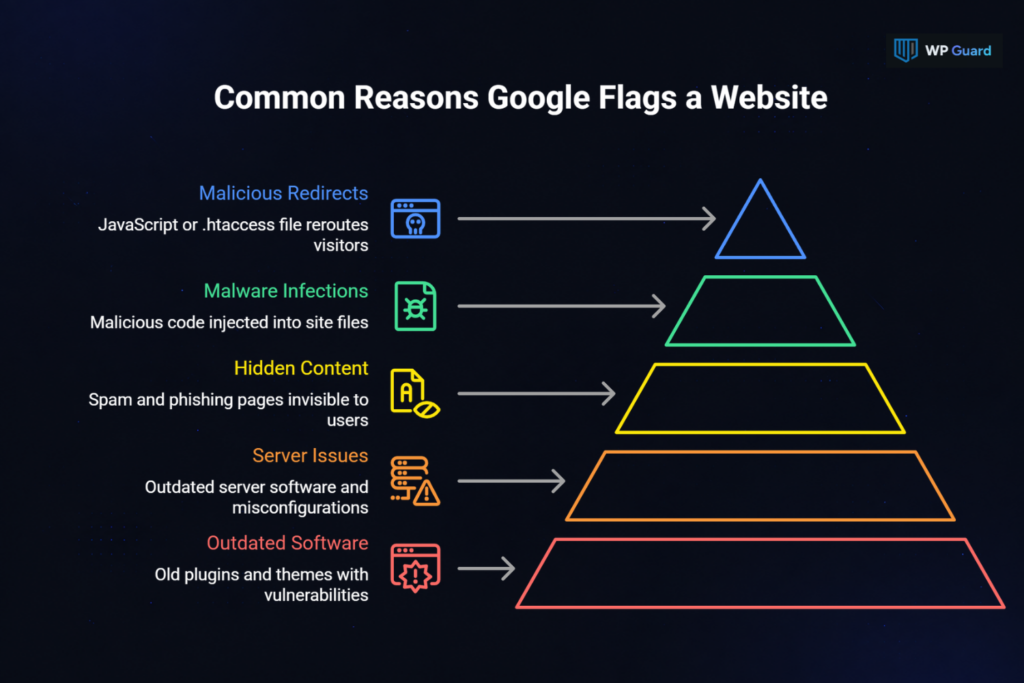
Google’s Safe Browsing system crawls sites around the clock and flags anything that could harm users visiting those pages. Unfortunately, many users don’t even realize their site was compromised until Chrome or Firefox starts showing warnings to visitors.
So what actually triggers those warnings? These are the most common reasons:
- Malware Infections: Attackers inject malicious code into your files, database, or plugins. Once it’s in, this code can redirect visitors to dangerous sites, steal personal data, or even install unwanted software on their device.
- Spam Content Injection: You might not see anything wrong on the front end, but compromised sites often carry hidden links pointing to gambling, pharma, or adult content. Google’s crawlers pick up on these in your source code, even if they’re invisible to you.
- Hidden Phishing Pages: Fake login pages that mimic sites like Facebook or Gmail are a favorite tool for hackers. They trick users into handing over passwords and personal details. These pages are often buried deep in your site’s directory, so you won’t spot them by browsing normally.
- Malicious Redirects: Some attacks don’t touch your visible content at all. Instead, they work through injected JavaScript or a modified .htaccess file that reroutes visitors to dangerous sites. You might never notice it yourself, but a single compromised file is enough for Google to flag your entire site.
- Outdated Plugins and Themes: Old software with known vulnerabilities is one of the easiest ways attackers get in. To put it in perspective, security researchers now identify around 560,000 new malware variants every day. Outdated plugins basically give those threats a door to walk through.
- Vulnerable Server Software: Running outdated PHP, MySQL, or web server software leaves your entire site exposed. Both developers and attackers can spot these weaknesses fast, and the risk isn’t limited to individual pages.
- Server Misconfigurations: Loose file permissions or open directories are like leaving your front door wide open. A directory set to 777 permissions, for example, basically allows anyone to read, write, and modify your files. These gaps are easy to miss during routine checks, but they’re just as dangerous as malware.
If any of these sound familiar, your site is at risk of staying flagged. The right move is a full cleanup, and we’ll walk you through it in the next section.
Clean Every Infected File and Close Security Gaps
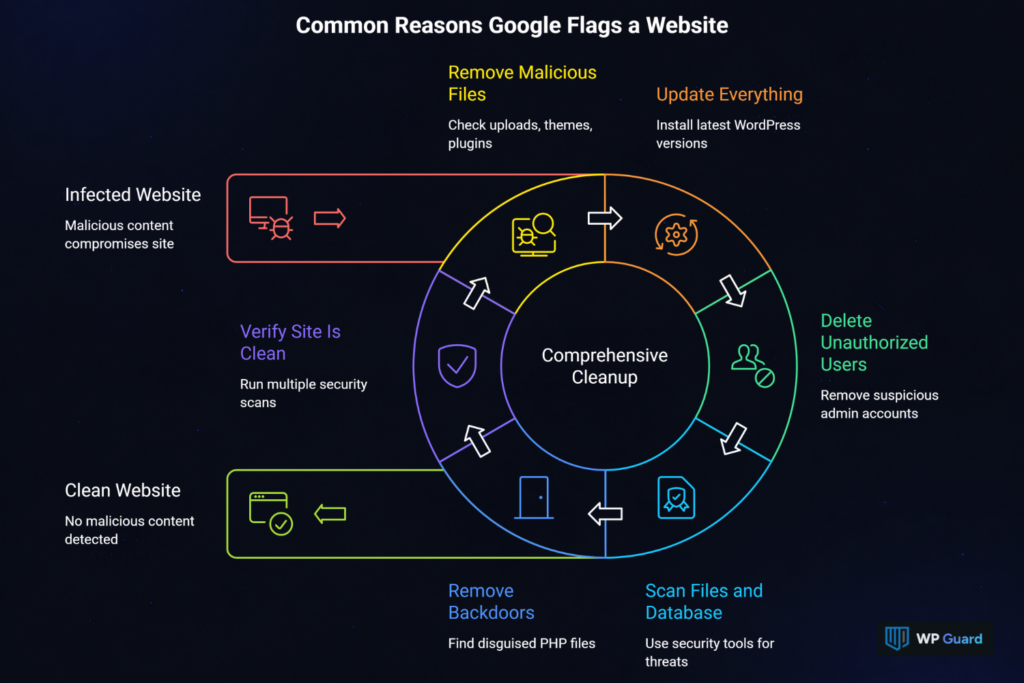
Now that you know what Google identified, it’s time to get rid of the malicious content. A half-done cleanup almost always leads to a failed review, so don’t skip anything here.
This is what to focus on:
Remove Malicious Files and Code
Your first priority is checking folders like /wp-content/uploads/, /themes/, and /plugins/ for anything suspicious.
While you’re at it, watch for files with random names, such as wp-tmp.php, as they can be signs of malware. Attackers often use names that look normal, so comparing your files with a fresh WordPress install can help you find anything that doesn’t belong.
Update Everything
Outdated software is how many of these attacks start, so this step is essential. Install the latest versions of WordPress core, all plugins, and themes. If a plugin hasn’t received updates from its developers for over a year, consider replacing it with a better-maintained option.
Delete Unauthorized Users
Open your WordPress admin panel and check for users you don’t recognize. If you notice hidden admin accounts, attackers may have created them to regain access to your site later. Delete any such suspicious accounts, then reset your WordPress, database, and FTP passwords.
Scan Your Files and Database
A security tool like WP Guard can scan your entire site for threats you might not catch manually. However, don’t stop at your theme and plugin files. Malware can also hide inside database entries, especially in the wp_options or wp_posts tables.
Remove Backdoors
These hidden scripts give attackers a way back into your site after cleanup. They usually show up as disguised PHP files or a base64-encoded code buried in theme and plugin directories.
So try looking for long strings of random characters or eval() functions. If you’re not comfortable checking these files yourself, use a security plugin or get help from a security professional.
Verify Your Site Is Clean
Once the cleanup is done, run at least two different security scans to confirm nothing was missed. Then cross-check those results against what Google Search Console originally flagged. A clean report means you’re ready to submit a review request (even one remaining issue can cause Google to reject it).
Why Some Google Safe Browsing Review Requests Fail
Many users clean their sites and submit a review, only to get rejected. That usually means something was missed during the cleanup.
Hidden malware is the most common culprit. Some of these infections bury themselves deep in server files using code that basic scans can’t detect. Cached pages are another issue, since Google’s crawlers may still see old, infected versions even after you’ve cleaned the live site.
Other issues, like forgotten subdomains, malicious cron jobs (aka automated scheduled tasks), or database infections, can trigger a failed review as well. And if you didn’t patch the original vulnerability, reinfection can happen within hours.
In fact, Google flags sites that keep switching between clean and compromised within a short period as “Repeat Offenders.” This can block your site from requesting another review for 30 days.
Google Safe Browsing Review Process: How to Remove the Warning Successfully
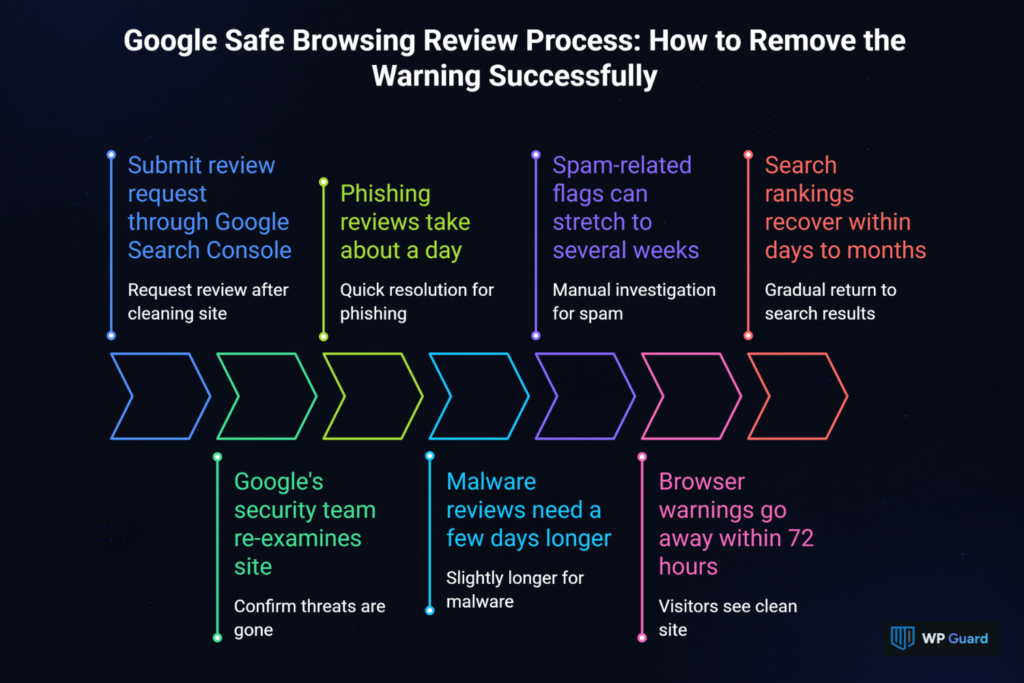
After you’ve cleaned your site and fixed every security issue, the next step is to submit a review request through Google Search Console. Google’s security team will then re-examine your site to confirm the threats are gone.
Below we share what to expect at each stage of the review process.
When to Request a Google Safe Browsing Review
As we mentioned earlier, if you submit a review before your site is fully clean, Google will reject it. That failed attempt can then push you into a slower re-review queue (which only delays recovery).
So before you hit that button, go back to your Google Search Console account and check the Security Issues report one more time. Google’s automated systems will scan for remaining malware, phishing pages, or compromised files.
That’s why we also recommend running a final scan with a separate security tool. We’ve seen many users skip this and end up waiting days for a rejection they could have avoided.
What Happens After You Submit a Review?
The timeline depends on what type of threat Google originally identified. Phishing reviews typically take about a day. Malware reviews need a few days longer. And spam-related flags can stretch to several weeks because they sometimes involve manual investigation.
Either way, you’ll get a notification in your Search Console account once the review wraps up. If your site is clean, browser warnings in Chrome and Firefox usually go away within 72 hours. But if problems remain, Google will add new details to the Security Issues report so you know what to fix next.
One thing to keep in mind: don’t submit another review while one is already being processed. That can get your site labeled as a repeat offender.
Will Your Search Rankings Recover?
Once Google removes the Safe Browsing warning, visitors will stop seeing that red screen in their browser. This means search engines will start showing your pages in search results again without any warning labels.
That said, don’t expect rankings to bounce back overnight. Brand-related searches tend to recover within days, but competitive keywords (like “best WordPress hosting” or “SEO services”) can take one to six months to fully return. Basically, Google needs time to rebuild trust in your domain after a security issue.
During this period, keep publishing new content and make sure your site stays secure. That kind of ongoing activity will send a strong sign to search engines that your site is worth ranking again.
Protect Your Website from Future Google Safe Browsing Warnings
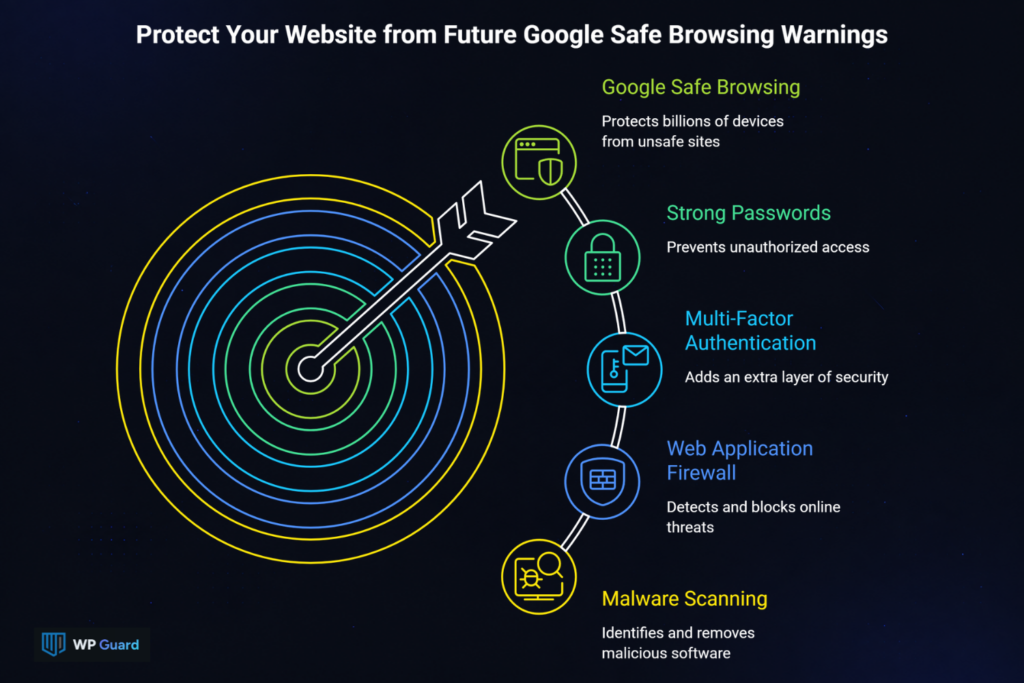
Getting your site removed from Google’s unsafe list is a big step, but keeping it safe prevents the warning from coming back.
So start by keeping WordPress, plugins, and themes updated. Then, add regular malware scanning and a web application firewall to detect online threats early. You’ll also want strong passwords with multi-factor authentication every time you sign in.
All of this matters because Google Safe Browsing protects over five billion devices across Chrome, Android, Firefox, Gmail, and other browsers. So if your site gets flagged again, billions of users could see that warning instantly.
That’s why our team at WP Guard focuses on prevention. We handle malware cleanup, real-time monitoring, and long-term protection so you never have to deal with this again.
FAQ: Google Safe Browsing Questions Website Owners Often Ask
Here are the most common questions we get from site owners dealing with Safe Browsing warnings.
Can I Bypass a Google Safe Browsing Warning?
Technically, yes. Users visiting a flagged site can click past the warning in Chrome or Firefox by default. But that doesn’t fix anything.
The warning exists to protect users from malware, phishing, and other threats that could harm their computer. Bypassing it just puts visitors at risk and leaves your site blocked on the internet.
Do I Need to Sign In to Google Search Console to Request a Review?
Yes. You need a verified Google Search Console account to submit a security review. Google uses ownership verification to make sure only the actual site owner can request a review. Without a secure, verified account, there’s no way to start the process.
Will Removing Malware Automatically Remove the Warning?
No. Getting rid of the malware is only the first step. You still need to request a review through Google Search Console so Safe Browsing can verify the fix. Warnings stay in place until Google confirms your site is clean, which typically takes a few days.