WordPress Database Cleanup: Improve Performance and Security
Every WordPress site builds up baggage nobody notices until it’s slowing everything down. That’s the whole idea behind WordPress database cleanup: clearing out old revisions, spam, and the kind of hidden entries that give attackers a foothold.
We built WP Guard to combat the same issues that never show up on a surface-level scan but wreck performance anyway.
In this guide, we’ll walk through the clearest signs your WordPress database needs attention, and how to clean it manually. We’ll also get into the database entries that point to a security problem, since bloat and risk tend to travel together.
What Is a WordPress Database, Exactly?
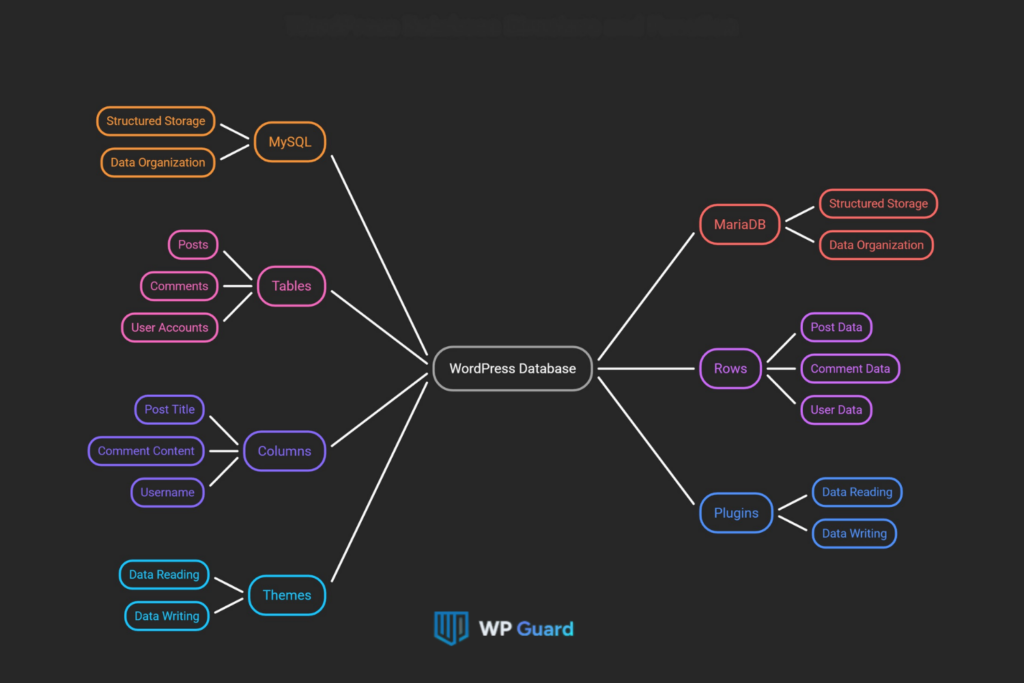
A WordPress database is the structured storage system holding every post, setting, and user record your site runs on. Nothing on that site functions without it. Even a single page load pulls temporary data from dozens of stored records across several WordPress tables at once.
This database runs on MySQL or MariaDB, and both organize records into rows and columns inside tables. Each table here works like a labelled drawer.
As a result, posts stay separate from comments, and user accounts stay separate from both, across all your database tables. With that, WordPress can pull exact records instead of scanning unrelated data.
Every plugin and theme reads from and writes to this same structure. So bloat in one plugin’s data can affect the entire site’s essential content over time.
What Signs Point to a Bloated Database?
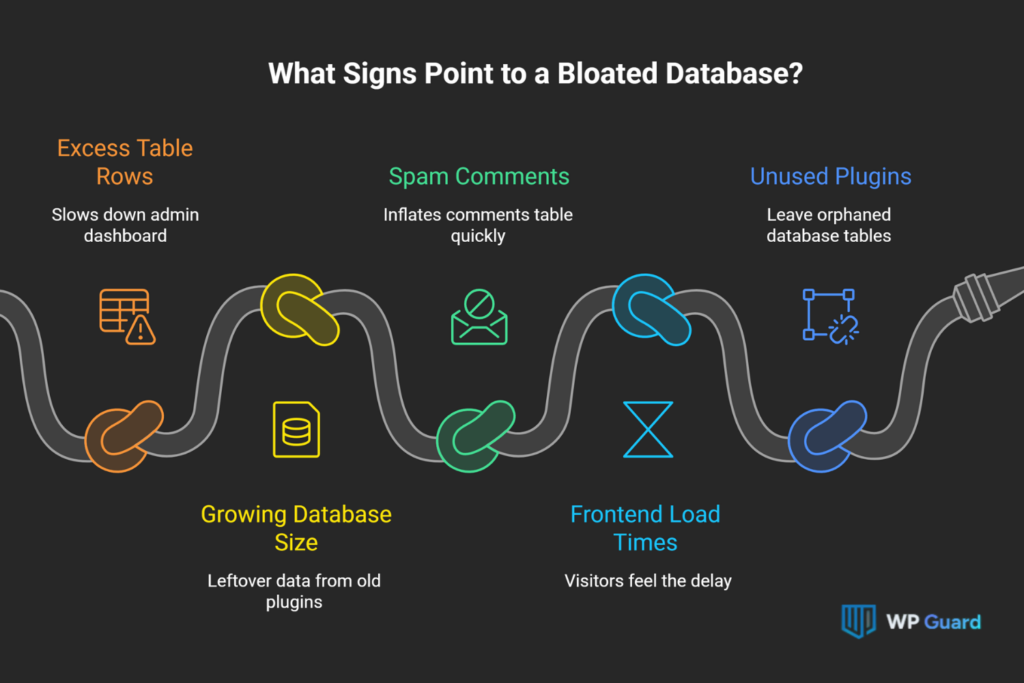
Slow dashboards, rising database size, and spam buildup are the clearest signs your WordPress database needs a cleanup.
These signs usually show up together, so watch for more than one at a time:
- Sluggish WordPress Dashboard: Pages inside your admin dashboard take longer to load once tables pile up with excess rows. Editors and writers feel this first, since every screen pulls data straight from those tables.
- Database Size Keeps Growing With No New Content: A rising database size without fresh posts usually points to leftover data from old plugins and themes. Old exports, logs, and cached entries stack up unnoticed in the background and add to your overall database size.
- Spam Comments Pile Up: Unmoderated spam comments inflate the wp_comments table within weeks on busier sites. If left unchecked, this buildup slows down both the frontend and the backend equally.
- Frontend Load Times Start Dragging: Visitors feel the delay when every page request has to scan through bloated database tables. That lag directly affects bounce rate and how long people stay on your WordPress site.
- Unused Plugins Still Sit in Your Files: Deactivated plugins and unused plugins often leave orphaned database tables behind even after removal. This adds hidden weight that never shows up in your plugins and themes list.
Spotting even two of these signs early can give you a head start before performance drops enough for visitors to notice or leave. But say you did notice one or two signs, how would you clean them?
How Do You Clean WordPress Database Manually?
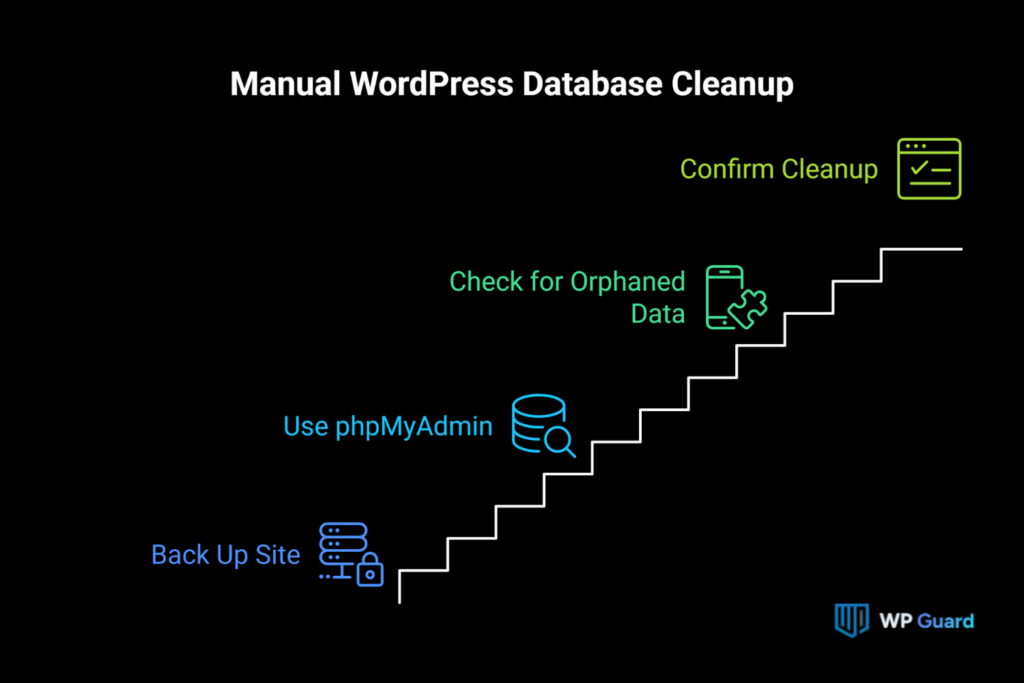
You can start cleaning a database manually by backing it up first, then using phpMyAdmin to strip out the junk taking up space. This method gives you full control over what stays and what goes during your database cleanup.
However, it takes more time than simply running a plugin, so plan for that before you start. So, here’s what the manual process looks like, step by step.
1. Back Up Your WordPress Site Before You Touch Anything
Export a full backup using your host’s backup tool or a dedicated plugin, such as UpdraftPlus, Duplicator, or Jetpack VaultPress Backup, before editing anything.
Then store that file somewhere outside your server. That way, a failed query won’t wipe out your only database backup.
2. Using phpMyAdmin to Remove Junk Data
Next, log into phpMyAdmin through your hosting dashboard to reach your WordPress database tables directly.
From the Structure tab, use the Tables tab and filter tables to find the ones showing high overhead (unused database tables that can build up after it’s changed or deleted). Then select the Optimize Database Tables option from the dropdown menu to reclaim space.
This is the path in short:
Structure > Tables > Filter Tables > Optimize Database Tables
Sites we’ve worked on tend to show the same pattern: usually wp_options and wp_postmeta carry most of the bloat.
You can also run direct SQL queries to remove unnecessary data like expired transients, auto drafts, trashed posts, and old post revisions. However, this method requires a working knowledge of SQL to avoid deleting the wrong data.
3. Checking for Orphaned and Duplicate Data
Beyond revisions, look for duplicated data, orphaned relationship data, and unattached media files sitting unused in your uploads. These outdated data fragments rarely show up in a normal admin scan, since they don’t attach to any live post or page.
Quick Tip: Checking the meta key column while you browse each table helps you spot which entries belong to a deleted plugin and which ones still serve your site.
4. Confirming the Cleanup Actually Worked
Run the optimize table option one more time after deleting anything. Removing rows leaves gaps that still take up space until you defragment the table.
Along with that, load a few pages on the live site to confirm nothing broke, especially anything tied to plugins and themes you didn’t touch directly. If something looks off, restore from the backup you made in step one rather than trying to patch it manually.
Which Database Tables Are The Most Important?
Five core database tables are the heaviest ones when you’re deciding what’s safe to clean and what to leave alone. They hold a different piece of your WordPress website each, and mixing them up can break more than it fixes.
See how each one breaks down:
| Table | What It Stores | Safe to Clean? |
| wp_posts | Posts, pages, revisions | Partially, clean revisions but keep published content |
| wp_options | Site settings, autoloaded data | Carefully, only remove orphaned or expired entries |
| wp_commentmeta | Comment metadata | Yes, if the related comment no longer exists |
| wp_postmeta | Custom field data | Partially, safe only once the parent post is gone |
| wp_usermeta | Account meta and preferences | Safe if orphaned, but leave active user data alone |
Among them, wp_commentmeta often collects leftover data once comments get deleted. It’s one of the safer WordPress tables to sweep, out of all the database tables on a typical install. Besides that, unused tables and orphaned tables show up most often after a plugin gets removed without a proper uninstall process.
Orphaned cron jobs can linger the same way. They still fire on a schedule long after the plugin that created them is gone. This kind of database clutter rarely affects site performance on its own, but it adds up across a full server over time.
Fair Warning: wp_options stores site-wide settings, which means careless edits here can break your entire WordPress database in one move.
What Should You Look for in a Cleanup Plugin?
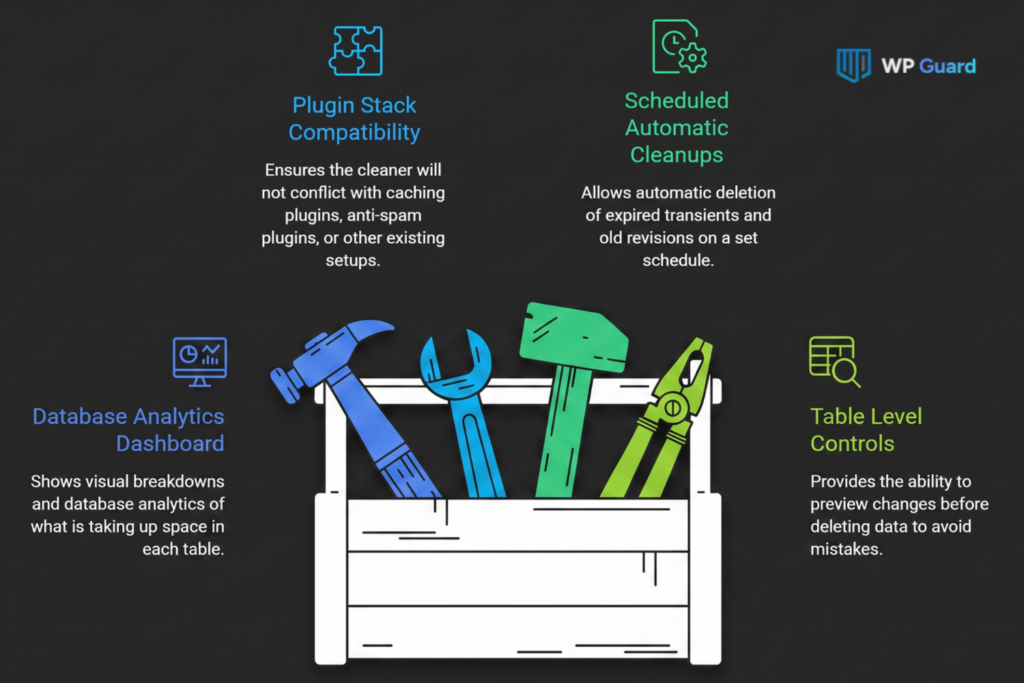
A clear analytics view, scheduled cleanups, safe table controls, and plugin compatibility separate a good database optimization plugin from a risky one. Most tools handle the basics, but the details decide whether you trust one with your live site.
Look for these four features when comparing your options:
- Clear Database Analytics Dashboard: A good database optimization plugin shows visual breakdowns and database analytics of what’s taking up space in each table. This makes it easier to spot problems before they grow into larger slowdowns.
- Compatibility With Your Plugin Stack: A plugin-compatible cleaner won’t conflict with caching plugins, an anti-spam plugin, or anything else already running on your WordPress plugin setup. Checking this first avoids breaking a feature you rely on daily.
- Scheduled Automatic Cleanups: Plugins like WP Optimize let you automatically delete expired transients and old revisions on a set schedule. It keeps database bloat from building back up between manual checks, since a bloated database rarely fixes itself.
- Safe Table Level Controls: Preview changes before deleting anything, since not every WordPress database cleanup tool asks for confirmation first. Skipping this step is how mistakes become lost unused data.
Tools like Advanced Database Cleaner and the WP Optimize plugin both offer a free version with the core features included. Plus, the Advanced Database Cleaner premium tier adds remote scan credits and other advanced features for larger sites.
Whichever option you pick, check the plugin settings first so a scheduled run doesn’t delete unused plugin data you still need.
Make Database Cleanup Part of Your Routine
A clean WordPress database keeps your site fast and closes off the spots attackers rely on most.
You’ve now seen how to spot bloat, clean it manually, and pick a plugin that fits your setup. None of this needs to happen daily, though. Just a regular check, paired with a full backup beforehand, keeps your site’s essential content safe while everything else stays lean.
Start with one method from this guide today. Maybe a quick phpMyAdmin session or a plugin like WP Optimize running on a schedule. Your dashboard will instantly feel the difference.
Want more ways to keep your site running smoothly? Visit WP Guard and check out our other guides on WordPress performance and security for what to tackle next.
Frequently Asked Questions About WordPress Database Cleanup
A few questions come up often once site owners start looking closer at their database. Here are quick, straight answers to the ones we hear most.
How Often Should You Clean a WordPress Database?
Most sites do fine with a database cleanup once a month, though busier sites with frequent posting or heavy traffic benefit from a biweekly schedule. Cron jobs can automate this. They run cleanup tasks on a set timer without you needing to log in and do it by hand each time.
Can You Clean a Database Without Any Plugins?
Yes, native WordPress functions combined with direct SQL queries through phpMyAdmin can handle most cleanup tasks manually. This route takes more technical comfort. However, it skips the overhead of installing another WordPress plugin your site would otherwise need to run constantly in the background.
Does WP Engine Handle Database Cleanup Automatically?
WP Engine and similar managed hosts often run basic optimization in the background, but they rarely replace a full database cleanup. You’ll still want to check database analytics yourself, since automated hosting tools tend to miss orphaned data tied to specific plugins.
Will Cleaning My Database Delete My Posts?
No, a proper cleanup targets post revisions, spam, and orphaned data, not your published posts or pages. As long as you back up first and avoid deleting core content tables, your actual posts stay untouched through the entire process.