WordPress Backdoor Removal: A Step-by-Step Guide
A WordPress backdoor is hidden code that lets hackers bypass your login page and regain access to your WordPress site. It can remain unnoticed for weeks, even after you think you’ve cleaned the infection (scary thought, right?).
That persistent access puts your entire site at risk. In fact, hackers can return later to inject malware, steal data, or create new admin accounts without breaking in again.
At WP Guard, we’ve seen what happens when anyone ignores this risk for too long. That’s why we’ve put this guide together to teach you how to spot a backdoor, remove it step by step, and lock things down so it doesn’t come back.
What Is a WordPress Backdoor and Why Hackers Install One
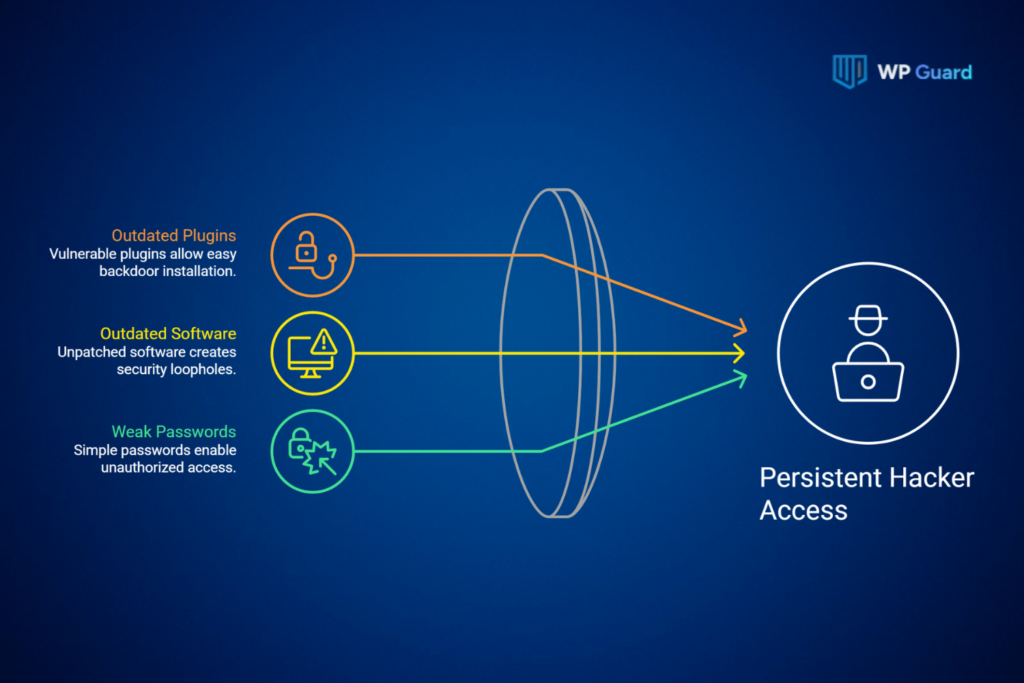
As we’ve mentioned, a WordPress backdoor is a hidden piece of code that lets hackers skip your login page entirely and get straight back into your site. Unfortunately, most site owners don’t find one even months after hackers plant it, and that’s exactly the risk.
To plant that backdoor from the start, they often exploit outdated plugins, outdated software, or weak passwords.
Once a hacker gains access, the backdoor gives them a persistent route back into your site. This makes your site vulnerable in ways you might not notice right away. For example, vulnerable plugins silently hand over admin control to the hackers, and from there, data theft becomes an actual security risk.
Signs Your Site Has Hidden Backdoor Malware
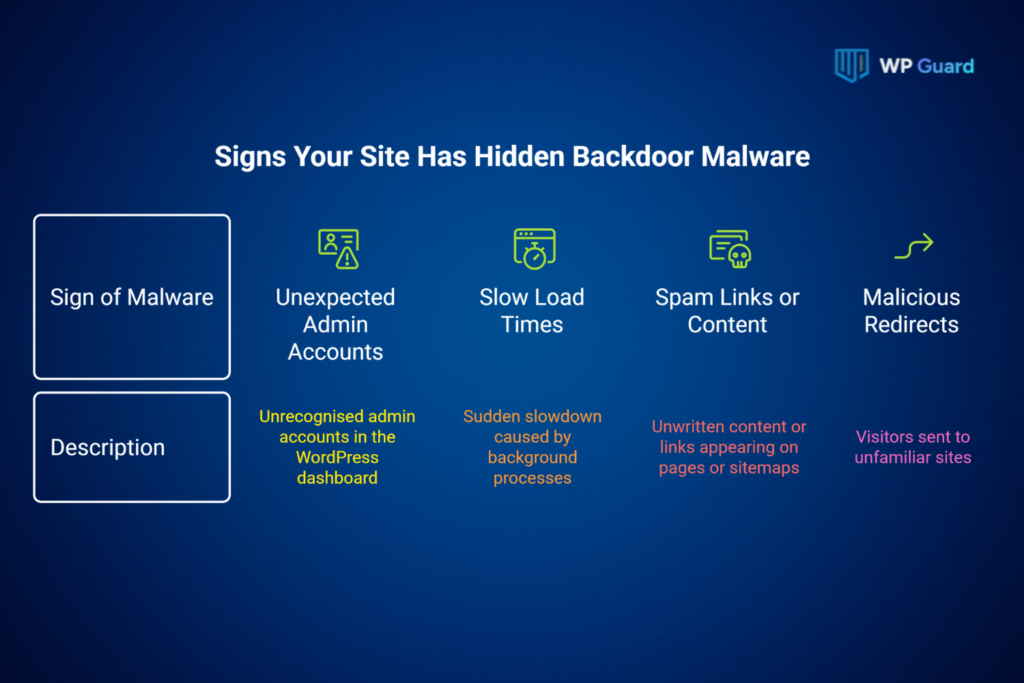
Ever notice unfamiliar admin accounts, strange redirects, or unexpected file changes on your site? Those can be early signs of hidden backdoor malware.
Basically, backdoor malware doesn’t always announce itself with a crash or a warning message. They appear in small details you’d only catch if you knew where to look, including:
Unexpected Admin Accounts You Didn’t Create
We get it, it’s easy to chalk it up to a slow host or an old plugin. But let’s dig a little deeper first.
Check your WordPress dashboard for admin accounts you don’t recognise. This is one of the clearest signs of backdoor malware, since unauthorized users often create their own login to skip the front door completely.
If you spot one, don’t just delete it and move on. Look through database entries tied to that account first, because it can point you toward other suspicious files.
Slow Load Times and Unfamiliar Database Entries
A sudden slowdown isn’t always a hosting issue. Sometimes it’s a sign that something else is running in the background (it can be just one process, or a dozen).
Search engines can pick up on this too. Spam links or spam content can appear on pages you never wrote. In fact, spammy links pointing to sites can also show up in your sitemap, often without any visible change to the page itself.
The same compromise can also affect where your visitors end up. Malicious redirects sending them to unfamiliar sites often point to the same root cause.
Where Backdoor Code Hides: Core Files vs. Infected Files
Backdoor code usually hides in one of two places: your WordPress core files, or files hackers planted themselves. Since each location requires a different cleanup approach, you first need to identify which type of file contains the backdoor.
Here’s a quick breakdown of both.
| Location | What It Looks Like | How to Handle It |
| Core WordPress files | Malicious PHP code inserted into a legitimate file, often functions.php | Compare against a clean copy and remove only the injected code |
| Hacker-planted files | A brand new PHP file with no reason to exist in that folder | Delete the entire file outright |
Core WordPress files come standard with every installation. Within those files, hackers can hide obfuscated code, with functions.php being a common target because WordPress loads it with the active theme.
Infected files work differently. These are extra files a hacker uploaded to your file system that are hiding in wp-content/uploads or inside the active theme’s folder. As a result, you will not find them in a fresh WordPress install because they were never supposed to be there.
Hackers often rename malicious scripts to look boring on purpose, like a fake image file sitting in your uploads folder. Suspicious code can also hide inside files that look legitimate, which is usually harder to spot during a manual check.
Pro Tip: Pay extra attention to two more spots: wp-config.php and unused plugin folders. Sometimes, a single hidden line in wp-config.php can hand over full control of your site. And hidden threats can hide inside forgotten plugins for months, as site owners rarely check them.
WordPress Backdoor Removal: A Step-by-Step Process
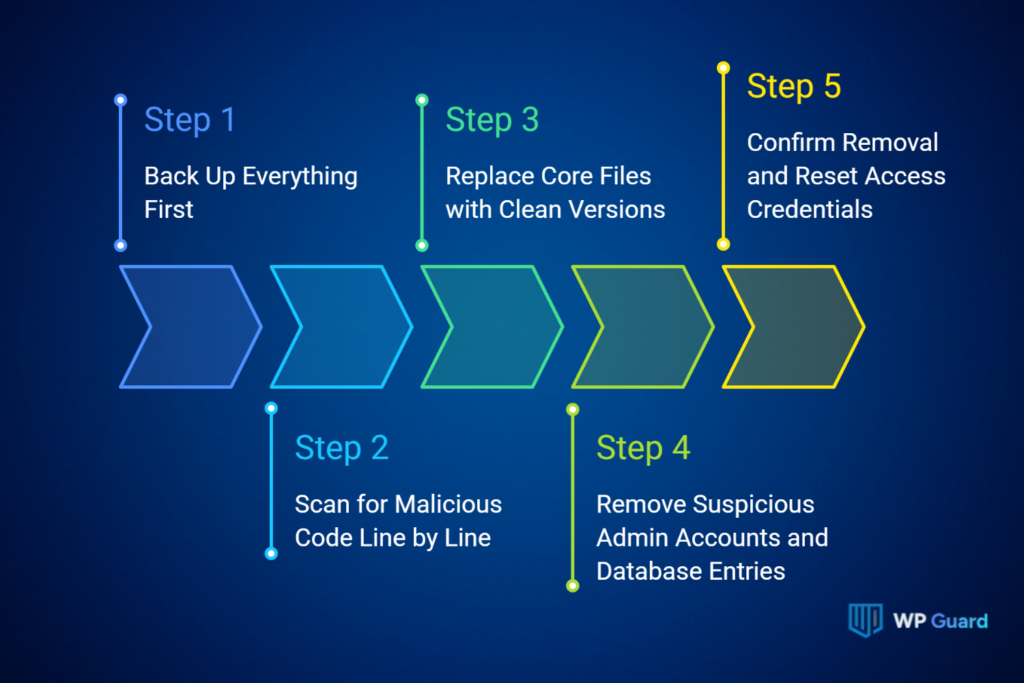
Backdoor removal works best when you follow a clear sequence. Each step checks a different access point by reducing the chance of leaving behind malicious code or a hidden entry point.
The process breaks down into five steps.
Step 1: Back Up Everything First
Before touching anything, create a full backup of your site (yes, even the database). In doing so, you don’t have to start over from scratch if a step goes wrong later.
A proper backup generally covers your entire file system and every table in your database rather than just the obvious folders. And skipping this step is the one mistake you can’t undo once removal is underway.
Step 2: Scan for Malicious Code Line by Line
A reputable security tool can flag most core files and plugins in minutes, which beats manually digging through thousands of lines. Yet, automated scanners often miss deeply hidden backdoors in WordPress, so don’t treat a clean scan as the final word.
Security scans should also look for unknown PHP files. Specifically, any file that anyone has changed recently (around the time you first noticed something was off). This process can uncover suspicious code that an automated scan may miss.
Step 3: Replace Core Files with Clean Versions
Replacing core WordPress files with fresh versions from the official source is one of the most reliable ways to remove hidden code. Every time we’ve replaced core files from start to finish, reinfection rates drop quickly.
Also, manually inspect files like wp-config, since standard core updates may not replace them. Remember, legitimate files should always match the source exactly, so unfamiliar code or unexpected changes deserve a closer look.
Step 4: Remove Suspicious Admin Accounts and Database Entries
Go through every user role and permission on your site rather than just the ones you remember creating. Why? Well, unauthorized administrator accounts can slip in through the same access point a backdoor already opened.
Beyond that, reviewing the database for rogue accounts and unfamiliar entries is a major part of cleanup. Attackers can leave malicious entries there to restore access in the future.
Once you confirm the scan is clean and secure every access point, build one habit to keep your site protected.
Step 5: Confirm Removal and Reset Access Credentials
Regularly changing your credentials counts here more than anything else in this process. In particular, change every password on your site instead of only the WordPress dashboard login.
Extra Tip: Don’t forget to run another scan after cleanup to confirm you removed all backdoor threats. As attackers may create multiple access points, removing one doesn’t guarantee the site is clean.
How Hackers Install Backdoor Malware Through Nulled Themes
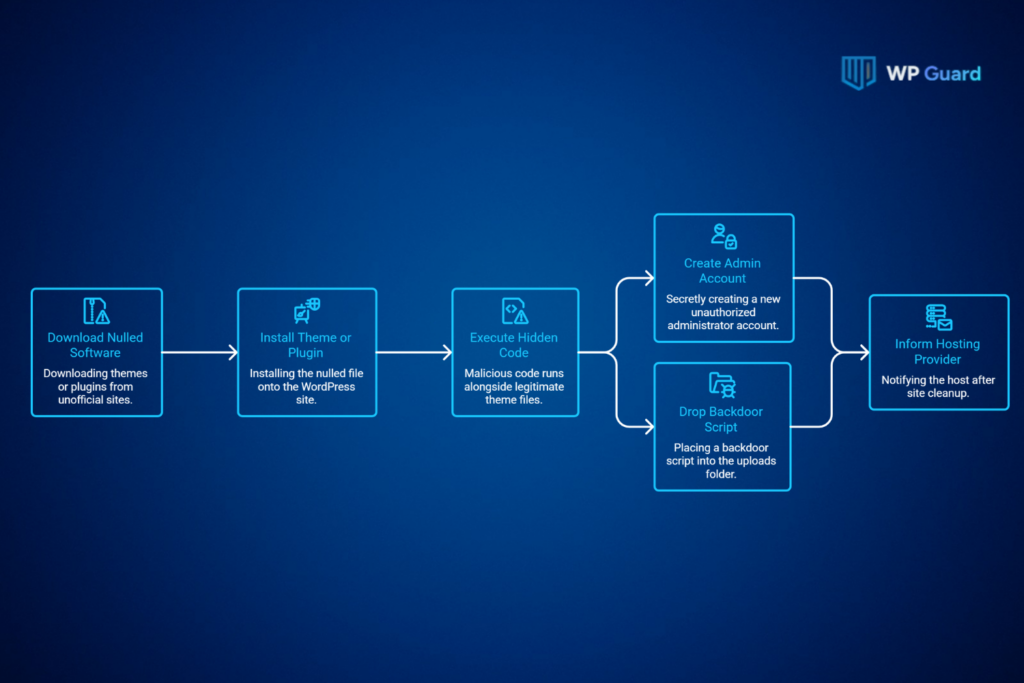
The moment you install a nulled theme, its hidden code runs right alongside the real theme files. Then it secretly creates a new admin account or drops a backdoor script into your uploads folder (all before you even finish setting up your homepage).
In practice, hackers often spread backdoor malware through nulled themes and plugins you download from outside the official WordPress repository. They modify these files with malicious code and redistribute them through unofficial download sites.
And if you’ve ever grabbed a “free” premium theme off a shady site, you’re not the only one. Many site owners have made the same call to save a few hundred dollars on a license.
We’ve seen nulled themes frequently contain pre-installed backdoors. Malicious plugins can carry the same risk. Attackers may disguise them as legitimate WordPress plugins while hiding backdoor code inside an altered file.
Now that your site’s cleaned up, there’s one more thing you should inform your host.
Backdoor Access, Your Hosting Provider, and What Happens Next
A hosting provider can check server resources for signs of activity you would never spot from your own dashboard. This is especially important when your site shares space with other accounts (one compromised site can put the whole server at risk).
From there, hardening your site’s security prevents the same entry point from opening. So follow these steps:
- Install a web application firewall: This blocks malicious traffic before it ever reaches your files by filtering out known attack patterns in real time.
- Limit login attempts: It stops brute-force attempts cold by locking out an IP after a set number of failed tries.
- Patch vulnerabilities on a schedule: Update WordPress core, themes, and plugins as soon as developers release new versions, since most exploits target known, unpatched gaps.
Your hosting provider often plays a role here too. They offer server-level firewall protection or automatic patching as part of the plan. So, you should check which security features your plan includes and which ones you still need to manage yourself.
Time to Shut the Door for Good
At this point, you’ve got the full picture: what a backdoor looks like, where it hides, and how to remove it step by step. That covers the technical side. And what’s left is making sure it doesn’t happen again.
A few ongoing security habits can reduce the risk of another backdoor:
- Fix insecure file permissions across your theme and WordPress files
- Keep plugin updates current so known vulnerabilities don’t remain open
- Use a security plugin to scan for hidden scripts and suspicious changes
WP Guard handles backdoor removal and ongoing monitoring so you don’t have to comb through file-editing settings alone. Reach out to us, and we’ll take it from here.
Backdoor Removal FAQs
Here are a few quick questions worth clearing up before you go.
How do I know if my site still has a hidden backdoor after cleanup?
Run a second scan a few days after removal. Backdoors sometimes leave rogue files behind that remain hidden until a plugin or theme triggers them again.
Can a backdoor come back after I remove it?
Yes, if the original entry point never got patched. Weak passwords, outdated plugins, or unfamiliar files left in the uploads folder are common reasons a backdoor returns.
What’s the difference between malware and a backdoor?
Malware is any harmful code on your site. A backdoor is a specific type of malicious file that hackers plant to regain access later, even after you think the problem’s gone.
Should I disable file editing in WordPress after removing a backdoor?
Yes. Disable file editing from your dashboard so no one can change core files through the admin panel alone. It closes off one more way a backdoor could sneak back into your WordPress environment, especially if an old plugin still has access to an entire folder.