How to Remove Malicious Code from WordPress
To remove malicious code from WordPress, you need to work through your core files, database, themes, and plugins one layer at a time. Most guides stop at the surface. And even when you follow them, the same infections keep coming back.
That’s exactly the problem we built WP Guard to solve. Between the silent infections and the cleanups that don’t fully stick, WordPress malware removal is a lot more complicated than it looks from the outside. But after you read this article, you’ll know how to:
- Spot the warning signs
- Prep your site before touching anything
- Run a proper malware scan
Let’s remove malicious code from every layer of your WordPress installation.
Is Your WordPress Website Infected? Here’s How to Tell
A hacked WordPress site doesn’t always look broken, but it often leaves behind telltale signs that point to malicious code in the background. Most WordPress malware works in the background for weeks before site owners notice anything. By then, search engines may have already flagged the hacked website.
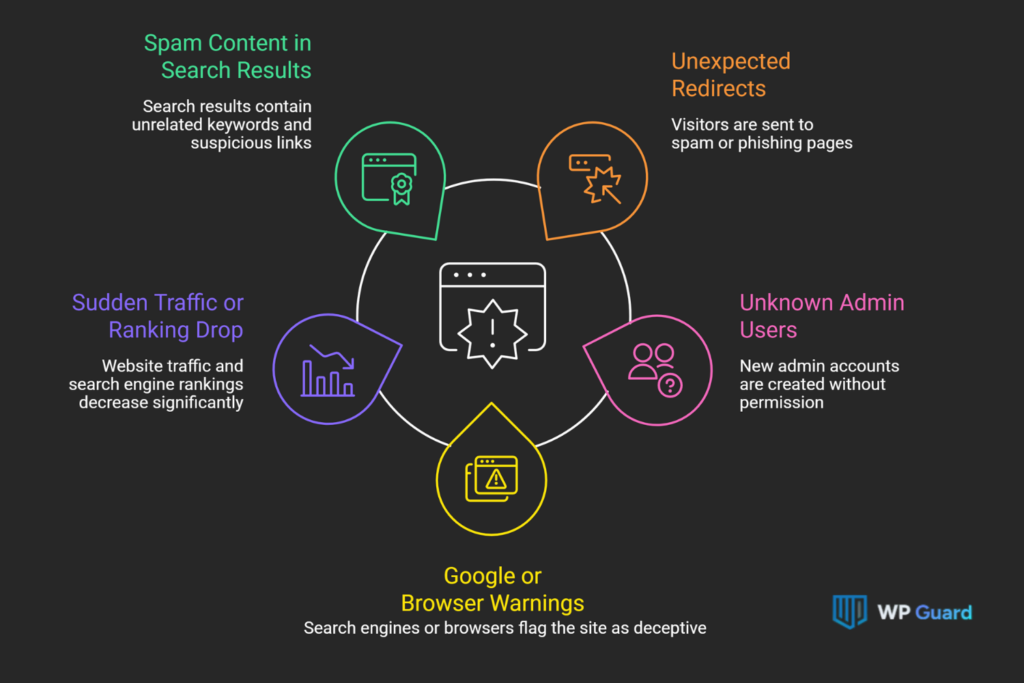
Here are five warning signs your WordPress site has a malware infection:
- Unexpected Redirects: Your visitors are sent to spam or phishing pages without warning. This redirect script usually lives inside your core files or WordPress database. So it isn’t visible from your dashboard at all.
- Unknown Admin Users: If you check your backend, you’ll find unknown admin users nobody on your team created. Attackers plant these accounts so they can get back in, even after you’ve cleaned up the obvious infection.
- Google or Browser Warnings: You might notice a sudden account suspension from the hosting provider or a “deceptive site” flag in Google Chrome. It means search engines already detected malicious traffic coming from your hacked website.
- Sudden Traffic or Ranking Drop: Google pulls infected sites from results to protect users, and rankings don’t return until malware removal is complete. So pages disappearing from results with no algorithm update to blame is a strong signal.
- Spam Content in Search Results: Your pages show up in Google with unrelated keywords or suspicious links crammed into the snippet. Attackers push this content in to hijack your site’s authority for their own purposes.
The window for stopping the spread is tight. One confirmed sign is enough to act on, because WordPress malware doesn’t sit still while you decide what to do next.
Prepping Your WordPress Site to Remove Malware Manually
Most site owners jump straight into deleting files the moment they suspect an infection. A rushed WordPress malware removal without preparation can wipe legitimate website files, break your site completely, and leave you with no way back.
So take these steps first:
| Step | Action | Why It’s Important |
| 1 | Back up all files and the database | Gives you a safe restore point before any changes |
| 2 | Restrict site access via .htaccess file | Stops malware spreading to visitors during cleanup |
| 3 | Change all passwords (admin, Database, FTP*, hosting account) | Cuts off attacker access immediately |
| 4 | Scan your local computer for malware | Prevents reinfection from your own device |
| 5 | Note recently modified files via SSH* or file manager | Helps you target infected files faster |
*FTP = File Transfer Protocol; SSH = Secure Shell
This is where we see most people go wrong. They skip step one in a panic, delete the wrong file, and lose their only clean copy of their WordPress dashboard settings or SQL (Structured Query Language) database backup.
However, every step in that table exists for a specific reason (which explains why so many cleanups fail here). If you rush the malware removal process, you’ll likely be starting over from scratch.
How Do You Run a WordPress Malware Scan?
A WordPress malware scan checks your website files, database, and security settings for suspicious code and potential threats. Running a scan is the fastest way to confirm an infection and pinpoint which files or database entries are compromised. But that’s only if you know what the scanner is capable of catching.
Below you’ll see what the scanning process covers, and where it falls short.
Running a Malware Scanner Plugin
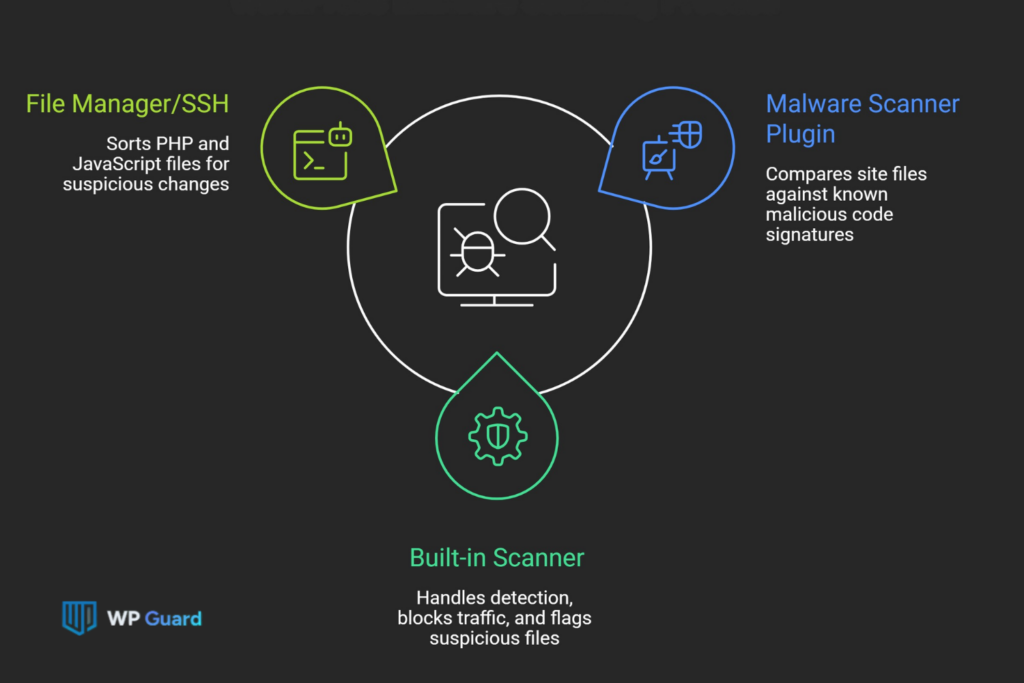
A malware scanner plugin works by comparing your site’s files against a database of known malicious code signatures, and flagging anything that matches as a potential threat. We’ve found through hands-on work that most free version scanners detect malware reliably but won’t remove it without an upgrade.
Wordfence, for example, can repair infected files from the official WordPress repository, but it can’t touch premium plugin files or third-party theme files regardless of the plan.
A built-in malware scanner like WP Guard’s goes further. It handles detection, blocks malicious traffic, and flags suspicious files in plain language. That way, you aren’t left decoding a raw scan report on your own.
What Scanners Often Miss, and How to Catch It
Malware signatures only catch known threats. Modern malicious code uses base64 encoding and heavy obfuscation to stay invisible to plugin-based scanners entirely. For your context, base64 encoding converts code into a different text format, while obfuscation makes the code harder to read and analyse.
That’s why it’s a good idea to sort your file manager or SSH output for your PHP and JavaScript files. You can do it by cross-checking any changes against your last plugin or theme update. If a site file changed on a date with no corresponding update, that’s worth investigating.
How to Remove Malicious Code from WordPress
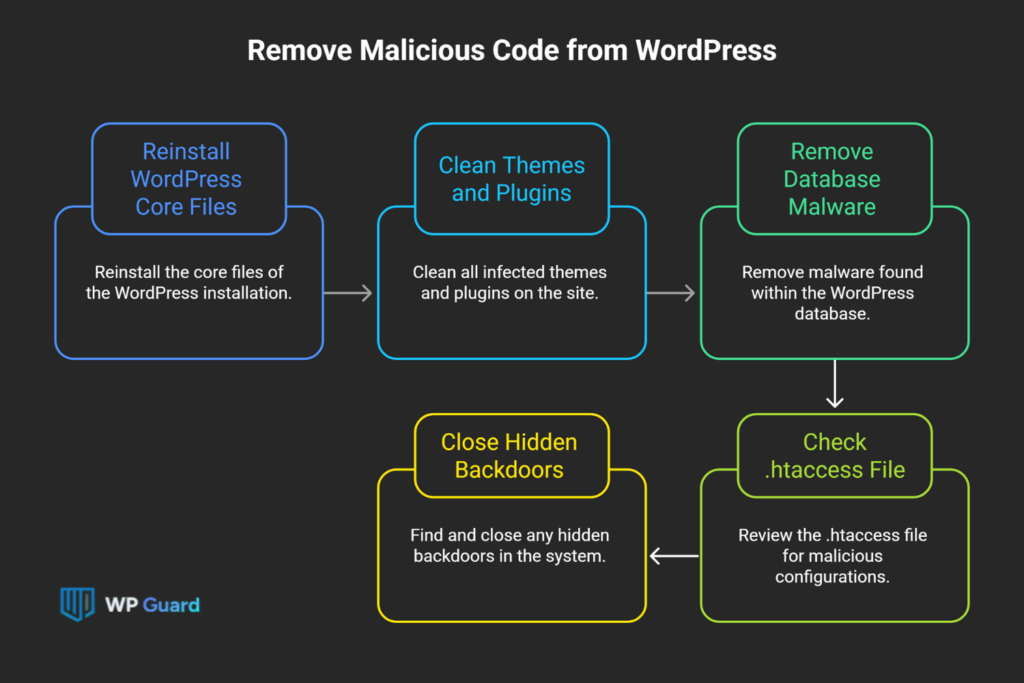
There’s no single file to delete, and no one-click fix. Removing malicious code from WordPress involves working through your core files, themes, plugins, and database one layer at a time. Each layer can carry a different type of infection, and if you miss one, the malware will come right back.
Take a look at how to remove malware manually, layer by layer.
Reinstall WordPress Core Files
Reinstalling core files replaces every compromised system data with a clean version from WordPress.org (without touching your content, uploads, or active theme and plugin folder). You’re basically rebuilding the WordPress core on a clean foundation before touching anything else.
You can start by downloading a fresh copy matching your current WordPress installation, then overwrite wp-admin and wp-includes only. Remember to never touch the wp-content folder, since that’s where all the files for your plugins and themes live.
After that, run wp core verify-checksums via the command line to confirm your CMS core files are clean. That command won’t cover premium plugins, though. It only checks against the official WordPress repository.
Clean Infected Themes and Plugins
Infected themes and plugins can’t be reliably cleaned by editing them manually.
The only safe approach is to delete them entirely and reinstall from official sources. That’s why we suggest starting with every inactive plugin. Attackers frequently stash malicious files inside deactivated installed plugins because most site owners never check them.
Then reinstall your active WordPress plugins and theme files fresh from the official site rather than trying to patch infected files directly.
Review file permissions on reinstalled plugins and themes too. WordPress generally recommends 755 for directories and 644 for files, although hosting configurations can differ. Incorrect settings can leave your site exposed to the same entry points.
And if nulled or pirated plugins and themes got you here, removing the infection won’t help if that same source is still on your web server.
Remove Malware from WordPress Database
Your database is one of the most overlooked parts of a WordPress malware removal, and it’s exactly where attackers hide injected scripts that file-based scanners never reach.
In this case, use WP-CLI or phpMyAdmin to search your database tables for suspicious scripts, unfamiliar URLs, or injected code. For example, search for patterns such as <script, eval(), base64_decode, or domains you don’t recognise. There, you’ll find the injected script tags, encoded strings, or suspicious external links.
While you’re at it, pay close attention to the wp_options table. Hackers drop malicious scripts and redirect code directly into site settings there. Check your wp-config and PHP files too, since attackers frequently inject malicious code there to run on every page load.
Important Note: Before you delete files or entries, take a full SQL database backup first. Removing the wrong database table entry can break core site functionality entirely.
Check Your .htaccess File
Most site owners clean their PHP files and database, then completely skip the .htaccess file. That’s a problem, because attackers inject redirect rules directly into it to send your visitors to malicious sites without touching a single plugin or theme file.
To check it, open the file via your file manager or FTP and look for unfamiliar RewriteRule or RewriteCond entries, especially ones pointing to external domains. Your clean .htaccess should only contain WordPress core rewrite rules. Anything outside that is worth investigating.
Simply delete the suspicious lines, save the file, and check your site immediately to confirm the redirects are gone.
Find and Close Hidden Backdoors
Closing a backdoor is what separates a cleanup that holds from one that fails within 48 hours. It’s the step we see most site owners skip because it’s the hardest to spot.
These are the functions that signal a backdoor:
- eval()
- base64_decode()
- exec()
- system()
These also show up in legitimate WordPress security code, so you can’t just delete every instance you find. In this situation, focus on wp-config.php, functions.php, and the uploads directory. Those are the three most consistently backdoored locations across infected sites.
Suspicious files with random names or unusual file permissions in those locations are a strong signal something’s wrong.
Why Does Malware Come Back, and How Do You Stop It?
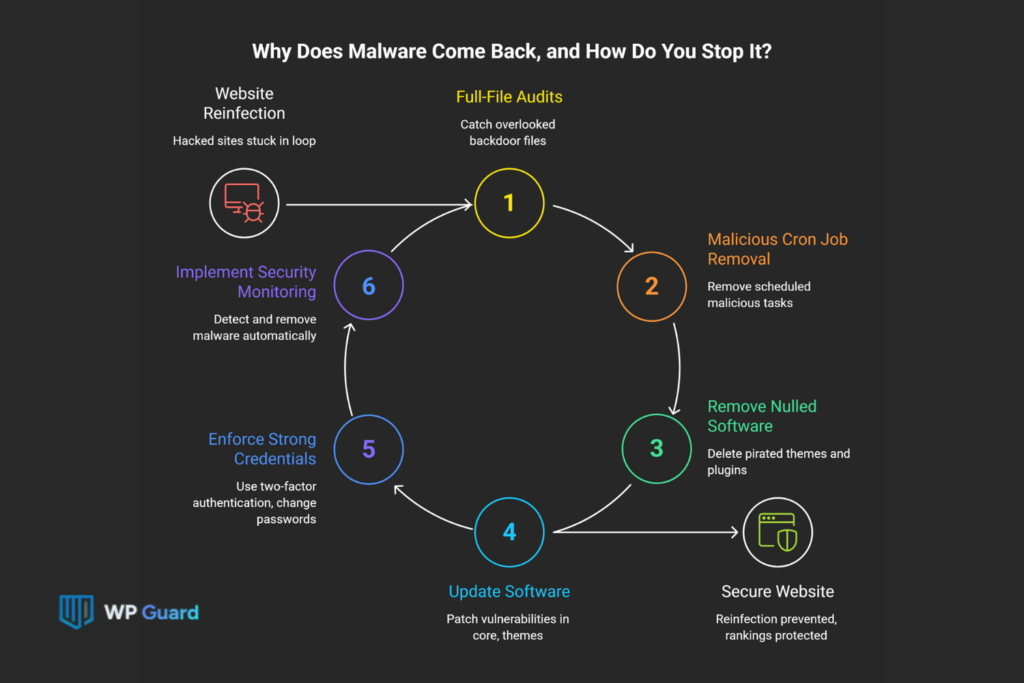
Malware often returns when the original entry point remains open. In our experience with hundreds of infected sites, the malware removal process fails when site owners remove WordPress malware and never patch the actual vulnerability underneath.
Take a look at the six most common reasons WordPress malware comes back after a cleanup:
- Missed Backdoors: A single overlooked backdoor file rebuilds the whole infection. Full-file audits catch what surface-level malware scans don’t. And skipping that step is what keeps hacked sites stuck in a reinfection loop.
- Malicious Cron Jobs: Attackers plant scheduled tasks at both the server-level crontab and inside WordPress via WP-Cron. These tasks re-inject malicious code automatically, sometimes within minutes of a completed cleanup.
- Nulled Themes and Plugins: Free pirated versions of premium plugins and themes come pre-loaded with backdoors by design. Removing the infection from your site won’t hold if that nulled source is still installed.
- Outdated Core, Themes, and Plugins: Unpatched WordPress security vulnerabilities are the most common re-entry point after a cleanup. Hackers scan for outdated software constantly, and an unpatched site is an open door. Weak or reused passwords make it even easier. Brute force attacks cycle through common credentials automatically until one works.
- Stolen or Reused Credentials: If an attacker still holds valid login credentials, the entire malware removal process will achieve nothing. We recommend enforcing two-factor authentication on all user accounts and changing every password tied to your hosting account.
- No Ongoing Security Monitoring: Reinfection goes undetected for weeks if you don’t have a security plugin to detect and remove malware automatically. By the time search engines flag the problem via Google Search Console, the damage to your rankings is already done.
A one-time cleanup without ongoing protection is how sites end up needing a WordPress malware removal service every few months. The only way to break that cycle is to patch the hole, rather than just clean up what came through it.
Malware Removed, Now Keep It That Way
Removing malicious code from WordPress is entirely doable, but it’s a multi-step process that requires getting every layer right. And site owners who hit repeated infections aren’t unlucky. They either missed a step, left a backdoor open, or never set up ongoing WordPress security monitoring after the cleanup.
WP Guard takes that entire process off your plate. The built-in malware scanner runs continuously and flags infected files before they spread. It also handles WordPress malware removal without you needing to touch a single line of code.
Get a free scan at our website and find out exactly what’s sitting in your site right now. And if you want to go deeper on keeping your WordPress website protected, browse the rest of our articles for more guides on security, malware prevention, and site maintenance.
Got Questions About WordPress Malware Removal?
These questions cover the details that don’t fit neatly into the main article but come up consistently for WordPress site owners dealing with malware infections. Let’s look at the answers.
Can Malicious Code Survive a Full WordPress Reinstallation?
Yes, it can. Reinstalling WordPress replaces core WordPress files only, so malicious code sitting in your theme files, plugin files, uploads folder, or database stays completely untouched. A full WordPress malware removal process has to cover every layer, instead of just the core, or the infection picks right back up.
How Do I Check WordPress Cron Jobs for Malicious Tasks?
Log into your server via SSH and run crontab -l to list all active server-level cron jobs. Inside WordPress, use a plugin like WP Crontrol to review scheduled tasks. Along with that, remove any entry you didn’t create, since attackers use these to re-inject malicious code automatically after a cleanup.
How Often Should I Run a Malware Scan on My WordPress Site?
At minimum, run a malware scan once a week and right after installing new plugins and themes or updating your PHP version. A security plugin with a built-in malware scanner automates this entirely. This way, your WordPress site isn’t left exposed between manual checks.
Do Security Issues in Themes and Plugins Cause Reinfection?
They’re one of the leading causes. Outdated plugins and themes carry unpatched security vulnerabilities that attackers exploit repeatedly. Google Chrome and other browsers flag sites pushing malicious traffic. And that flag won’t lift until the vulnerable source is removed and your malware scanner confirms the site is fully clear.