How to Restore a WordPress Site from Backup
What would you do if your WordPress site suddenly stopped working? A plugin update could crash your site, hackers could break in overnight, or you might accidentally delete important files. Without a recent backup, recovering your website and data can be difficult.
Most of the time, the website owners panic because they don’t know whether to restore the entire WordPress website or just specific files. And picking the wrong backup file can overwrite recent orders, blog posts, or changes you made last week.
In that case, restoring a recent backup is often the fastest way to recover. But the restoration process needs a careful sequence to avoid creating new problems.
This guide covers how to restore your WordPress site using a backup plugin or manually restore it through cPanel and phpMyAdmin. You’ll learn what a complete WordPress backup should include and how to pick the right method.
Follow along, and you’ll have your site back up and running in no time.
Restore WordPress from Backup the Right Way Before You Begin
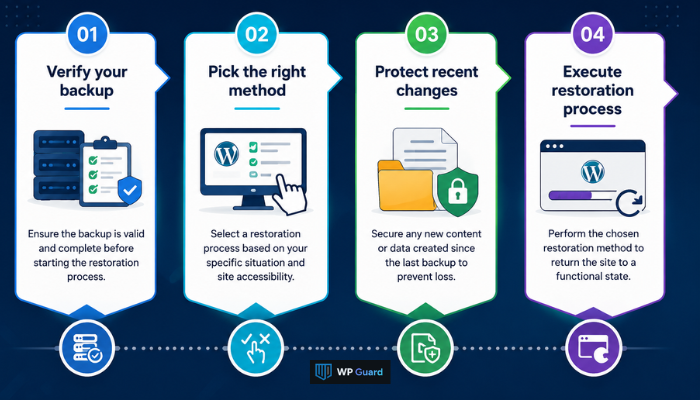
Before you restore your WordPress site, you need to verify your backup, pick the right method, and protect any recent changes. Skipping these steps could mean overwriting new content, restoring infected files, or losing data that wasn’t part of your last backup.
Here’s what you should do before restoring your site.
Decide Which Restoration Method Fits Your Situation
The safest approach is to use the same tool that created your backup. But that’s not always possible, especially if your site won’t load or your dashboard is locked out. This is a quick breakdown to help you pick the right restoration process.
| Situation | Best Restoration Method | Why |
| Dashboard still accessible | Backup plugin | One-click restore without leaving WordPress |
| Website won’t load | Hosting provider backup | Your host can restore server-level snapshots even if WordPress is down |
| Website hacked | Manual restoration | Gives you full control to inspect and clean files before uploading |
| Migrating servers | Manually restore via FTP client | You need to move files and the database between two different servers |
| Advanced troubleshooting | FTP + open phpMyAdmin | Lets you restore specific files or database tables without touching everything else |
For most site owners, a backup plugin will be the easiest path. Advanced users dealing with server migrations or database-level errors will likely need the manual restoration route through FTP and phpMyAdmin.
Check That Your Backup Includes Everything You Need
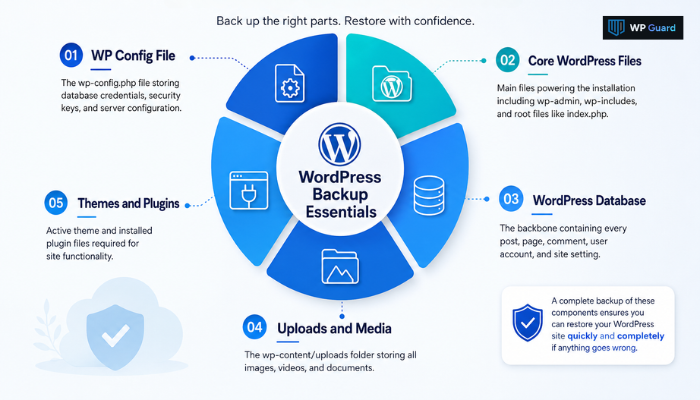
A complete WordPress site consists of files, themes, plugins, media uploads, and the database. Before you start, confirm that your backup set covers all of these. If even one of these elements is missing, your site may load with broken pages or missing content:
- Core WordPress Files: These are the main files that power your WordPress installation. It includes wp-admin, wp-includes, and root files like index.php. Your site won’t load at all without them.
- WordPress Database: Every post, page, comment, user account, and site setting lives inside your database file. Think of it as the backbone of everything you’ve built.
- Uploads and Media Library: If your backup doesn’t include the wp-content/uploads folder, your pages may show broken image links and missing files. That’s because this folder stores all your images, videos, and documents.
- Themes and Plugin Files: Your active theme and installed plugins need to be part of the backup too. Just make sure no plugin files are missing, as they can stop your site from working properly.
- WP Config File (wp-config.php): This single file stores your database credentials, security keys, and server configuration. Without a working copy, your site can’t even connect to its own database (which can take your site offline).
Both your database and file system backup should come from around the same timestamp. If they don’t match, you could end up with posts that reference images not yet in the uploads folder, or vice versa.
A complete WordPress backup with all the files and database together is the only way to guarantee a clean restore.
How to Restore WordPress from Backup Using a Backup Plugin or Manual Restoration
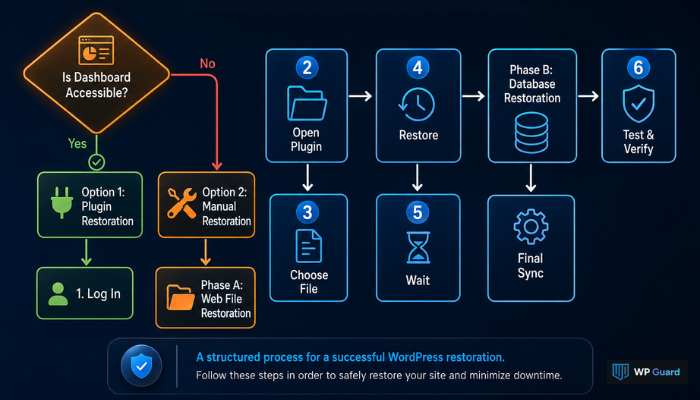
You can restore your WordPress site using a backup plugin directly from the dashboard or manually restore it through FTP and phpMyAdmin. The method you pick depends on whether your site is still accessible and how comfortable you are with server-level tools.
Let’s walk through both options step by step.
Option 1: Restore Your WordPress Site With a Backup Plugin
Backup plugins make the restoration process much simpler compared to doing everything by hand. UpdraftPlus alone has over three million active installations, and it lets you restore a full WordPress backup in just a few minutes. This is how to do it.
1. Log Into WordPress
Head to your WordPress dashboard at yourdomain.com/wp-admin. You’ll need dashboard access for this method to work, so if your site won’t load at all, skip ahead to the manual method below.
2. Open Your Backup Plugin
Once you’re in, go to Settings and select your backup plugin. For UpdraftPlus, click the “Existing Backups” tab to see all available backup files. If you store backups on Google Drive, Dropbox, or another remote location, rescan the remote storage first so the plugin can find them.
3. Choose the Correct Backup File
Now pick the backup that matches the last known clean version of your website. UpdraftPlus allows selective restoration of plugins, themes, uploads, the database, and other files. This means you don’t need to restore everything at once, just the parts that broke.
4. Start the Restoration
After selecting your backup, click “Restore” and choose which components you want to bring back. The plugin will download the backup files from your remote storage and begin the restore process automatically.
5. Wait for Completion
The backup process usually finishes within 15 to 30 minutes, depending on your site’s size and server speed. Whatever you do, don’t close the browser tab or navigate away while the restore is running. Otherwise, the restoration could fail and leave your site in an incomplete state.
6. Verify Success
After the restore wraps up, you’ll see a success message on screen. If any errors pop up instead, the plugin will show you exactly which step failed so you can go back and fix it.
7. Test Your Website
The last step is to visit your WordPress site from the front end and check that pages, posts, images, and plugins all load correctly. Try submitting a test form, clicking through your menus, and, generally, making sure nothing looks broken before you call it done.
Option 2: Manually Restore Your WordPress Files
If your dashboard is down or you need full control over the restoration process, manual restoration is the way to go. This method is popular among advanced users and requires an FTP client to connect to your web server, along with phpMyAdmin to restore your database. You’ll restore your website files first, then your database.
Restore Your WordPress Files With FTP
This process replaces your existing WordPress files with the versions from your backup. Follow the steps below to complete the process safely:
- Connect to Your Server: Start by opening FileZilla or your preferred FTP client. Then log in to your FTP server using the credentials from your hosting provider. You’ll usually find these in your hosting control panel or cPanel dashboard.
- Remove Damaged Files: Before uploading anything new, select and delete the old files in your public_html directory. This will clear out any corrupted or infected core WordPress files so you’re working with a clean slate.
- Upload Your Backup Files: With the old files gone, drag your WordPress files from your local computer into the public_html folder on the server. Make sure you include everything, from wp-admin and wp-includes to all the files inside wp-content.
- Restore Plugin Files: Your plugins folder inside wp-content needs all the plugin files from your backup. Missing even one outdated file here is one of the most common causes of fatal errors after a manual restore (if that scared you, it’s best to leave it to an experienced developer).
- Restore Your Themes: Themes work the same way as plugins. So drop your theme folder into wp-content/themes, and if you were running a child theme, include that folder too.
- Bring Back Your Uploads: The uploads folder inside wp-content holds every image, video, and document you’ve ever added to your site. Copy the entire folder so nothing shows up as a broken link on the front end.
- Verify Your wp-config.php File: Finally, open wp-config.php and confirm that the database name, username, password, and host all match your current server. If you moved to a new hosting provider, update these database credentials before going any further.
After uploading all the files, visit your WordPress installation in the browser. If you see a database connection error, go back and double-check the database details inside your wp-config.php file.
A clean file restore paired with the correct wp-config.php settings should get your site back online. However, you still need to restore the database, as it contains your posts, pages, and other site content.
Restore Your Backup Database With phpMyAdmin
Once your files are in place, the next step is to import your database backup.
Start by logging into your cPanel dashboard. Then access phpMyAdmin through the database management section.
If you’re restoring to a fresh WordPress installation, you’ll need to create a new database first. In that case, head to the Databases tab, enter a database name, and click Create. For existing MySQL databases, delete all the old database tables before importing so you don’t run into conflicts.
From there, click the Import tab, then “Choose File,” and select your SQL file from your local computer. Then set the format to SQL and click “Go.” Depending on the file size, this may take several minutes to complete.
Once the import is complete, you’ll see a confirmation message showing that your database was restored successfully. The last thing to do is open your wp-config.php file once again and make sure the database name, username, and password all match.
If you created a new database with a different name, update the DB_NAME value in wp-config.php so your site can connect to it.
Keep Your WordPress Site Protected With a Reliable Backup Strategy
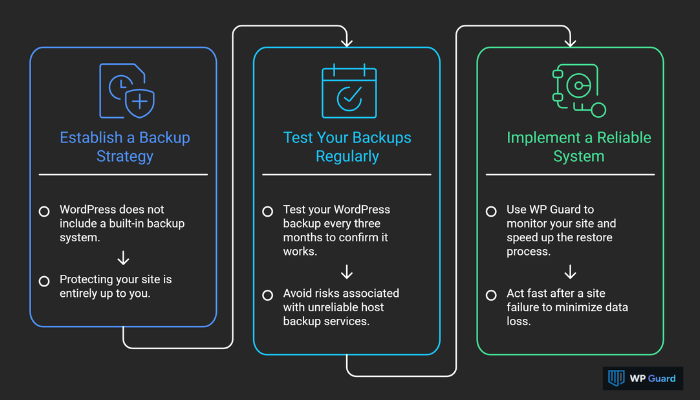
WordPress doesn’t come with a built-in backup system. That means protecting your WordPress site is entirely up to you. And without regular website backups, a single incident could wipe out years of content, orders, and customer data.
Many web hosts do offer backup services with their plans, but those backups aren’t always reliable or easy to restore when you actually need them. To avoid that risk, we recommend testing your WordPress backup every three months to confirm it works.
Remember, the faster you act after a site failure, the less data you lose. And that’s exactly why we built WP Guard as a reliable backup system. It monitors your WordPress site and speeds up the restore process when disaster strikes.
Visit WP Guard today for detailed information on how we can help.
Frequently Asked Questions About Restoring WordPress From Backup
These are some of the most common questions we hear from site owners after restoring WordPress. If you ran into trouble during the process, the answers below should help.
Can I Restore WordPress Without a Backup?
Not fully. Without a backup file, there’s no reliable way to restore your WordPress website to its previous state. Your hosting provider may have automatic server snapshots, so check with them first. Google’s cached pages and the Wayback Machine can also recover some text content, but they won’t bring back your database, plugins, or theme settings.
How Long Does It Take to Restore a WordPress Website?
It depends on a few factors. A plugin restore on a small site can finish in under 15 minutes. On the other hand, a manual restore with a large database and thousands of media files could take over an hour. Server speed, backup size, and the number of plugins all play a role in how long the process takes.
Can I Restore Only the WordPress Database?
Yes, and it makes sense when your WordPress files are still intact, but your content is missing or corrupted. Most backup plugins let you select just the database from your backup file without touching themes, uploads, or other php files. This is common after a failed update that only affected your posts, pages, or site settings.