How to Clean the Japanese Keyword Hack in WordPress
If your WordPress site suddenly shows pages full of Japanese text, you’re dealing with the Japanese keyword hack. It’s a common SEO spam attack that hijacks your search results.
Our team at WP Guard sees this exact pattern show up in client sites more often than other hacks we clean. This guide draws from that experience. It’ll walk you through spotting the signs, cleaning every infected file, and locking your site down so the keyword hack doesn’t come back.
The fix is pretty easy once you follow the right order, so let’s dive in.
How Do You Know Hacked Pages Are on Your Site?
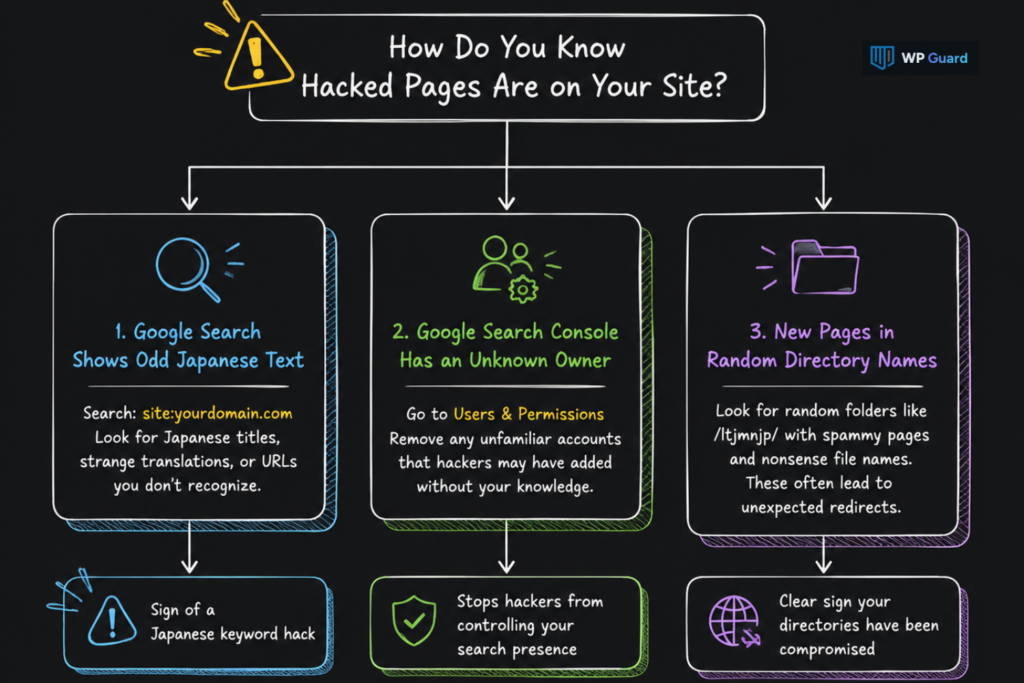
You can identify Japanese hacked pages by checking for unfamiliar Japanese-language URLs, search results, redirects, or spammy pages that you didn’t create. This hack often hides in plain sight, right inside your own search results.
Here’s what to check first, before you touch a single file or plugin.
Google Search Results Show Odd Japanese Text
Type “site:yourdomain.com” into Google search and scroll through what comes up. If you spot page titles in Japanese characters or oddly translated phrases, that’s a strong sign of a keyword hack. These listings often lead to fake product pages built to catch clicks meant for real buyers.
While you’re at it, check your search engine results for URLs you don’t recognize too. Attackers tend to generate dozens of these pages at once, each one different enough to slip past a quick glance.
Google Search Console Has an Unknown Owner
Another way is to open your Google Search Console account and head to Users and Permissions.
Hackers commonly add themselves as unauthorized users here, which lets them tweak your sitemap or geotargeting settings without your knowledge. We see many owners assume only they have access to Search Console.
If you spot a name you don’t recognize, remove it as soon as possible. Google Search Console hackers rely on staying unnoticed for as long as possible to keep milking your site’s search engine rankings.
New Pages Sit in Random Directory Names
Look for random folder names like /ltjmnjp/ hosting spammy content you never created. These indexed pages often carry file names that mean nothing in plain English, since they’re built by scripts instead of people.
Clicking one from search might prompt unexpected redirects to unrelated shopping sites. Off the bat, this is one of the clearest signs your directories have been compromised by a Japanese keyword hack.
How to Clean a Japanese Keyword Hack in WordPress?
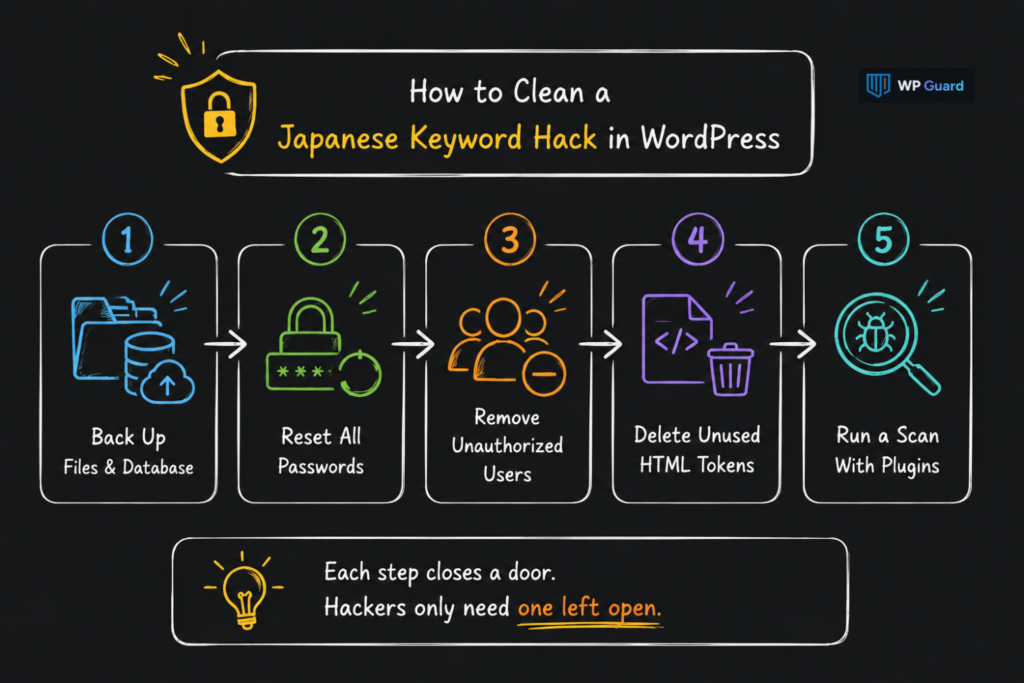
The first steps are backing up your site, resetting passwords, and locking out anyone who shouldn’t have access. Acting in this order saves hours of undoing mistakes later. Not to mention, a security breach spreads fast once a keyword hack takes hold of your files.
Below you’ll see the order that stops the damage from spreading further:
- Back Up Your Files and Database: Save a full copy of your WordPress database and files before deleting or editing anything on your site.
- Reset All Admin and Hosting Passwords: Your WordPress admin area, hosting account, FTP (File Transfer Protocol), and database all need new passwords right after finding the hack.
- Remove Unauthorized Users in Search Console: Go to Users and Permissions inside Search Console. That’s where you’ll find and remove unauthorized users you never added.
- Delete Unused HTML Verification Tokens: These HTML verification tokens are how hackers reclaim ownership later. So clearing them blocks further unauthorized access for good.
- Run a Scan With Security Plugins: A dedicated WordPress security plugin will scan your installation and flag the exact files still carrying traces of the keyword hack.
In short, a password reset alone won’t help if an old verification token still sits on your server. Each step closes a separate door, and hackers only need one left open.
How Do You Fix Core Files and the .htaccess File?
Fixing core and .htaccess files involves replacing infected files with clean originals from WordPress.org. Hackers use these two spots often because they control how your site loads and runs.
Take a look at what each part of the fix looks like.
Reinstall Clean WordPress Core Files
Download a fresh copy of WordPress core straight from the official site and compare it against your live site. Critical files like wp-config.php, wp-load.php, and anything in wp-includes are common targets, because attackers commonly inject scripts into files visitors never see.
What you can do is open your file manager or connect through an FTP client, such as FileZilla. Then swap out anything that looks altered. Cutting corners here, like replacing only half the core WordPress files, will leave suspicious files behind (and the Japanese keyword hack often returns within days).
Reset the .htaccess File to Default
Your .htaccess rules control redirects, so a hacker can silently reroute visitors without touching a single page. In this case, open WordPress and head to Settings, then Permalinks, and save without changing anything.
This regenerates a clean .htaccess file automatically and wipes out anything hackers inject malicious code into. If your site still shows odd behavior after this, check for a second .htaccess file hiding inside a subfolder. Some hacks plant one there instead of the main root.
Clean the Database and Wp-Content Folder
Malicious entries usually sit inside your wp_posts and wp_options tables, dressed up as regular content. This is often where hackers inject malicious entries meant to look like normal posts.
To clean them, open phpMyAdmin and search both tables for entries tied to the Japanese keyword, then delete anything unfamiliar. Suspicious files inside wp-content, especially in uploads, often carry base64-encoded scripts built to hide from a quick scan.
Check Your Sitemap for Spammy Links
A five-minute check that saves a much longer headache: open your sitemap.xml file and scan every listed URL closely. Hackers often add spammy URLs here to speed up how fast Google indexes fake pages tied to the keyword hack.
Simply delete anything unfamiliar, then regenerate a clean sitemap through your SEO plugin. Once it’s live, resubmit the sitemap in Search Console to help Google discover your legitimate URLs and recognise updates to your site structure.
Can Directory Browsing Expose Your Hacked Pages?
Yes, open directories and loose permissions give hackers an easy way back in. Anyone can view folder contents on a WordPress installation with directory browsing left on, including hidden files you never meant to share.
Locking these settings down closes off one of the simplest paths back into your site, and it strengthens your site’s security overall.
| Setting | Risk If Left Open | Fix |
| Directory Browsing | Lets anyone view folder contents | Disable via .htaccess or hosting panel |
| File Permissions | Loose permissions allow file edits | Set folders to 755, files to 644 |
| Wp-Config File | Exposes database credentials | Restrict to 440 or 400 where supported |
| Uploads Folder | Common spot for hidden PHP files | Block PHP execution in uploads directory |
Each row above targets a different way hackers gain backdoor access to your WordPress dashboard. However, fixing file permissions alone won’t restrict access if directory browsing still shows every sensitive file inside your uploads folder.
A web application firewall adds another layer and catches attempts to exploit these gaps before they reach your server at all. Your hosting control panel usually lets you toggle directory browsing off in just a couple of clicks.
What Happens After You Clean the Hack?
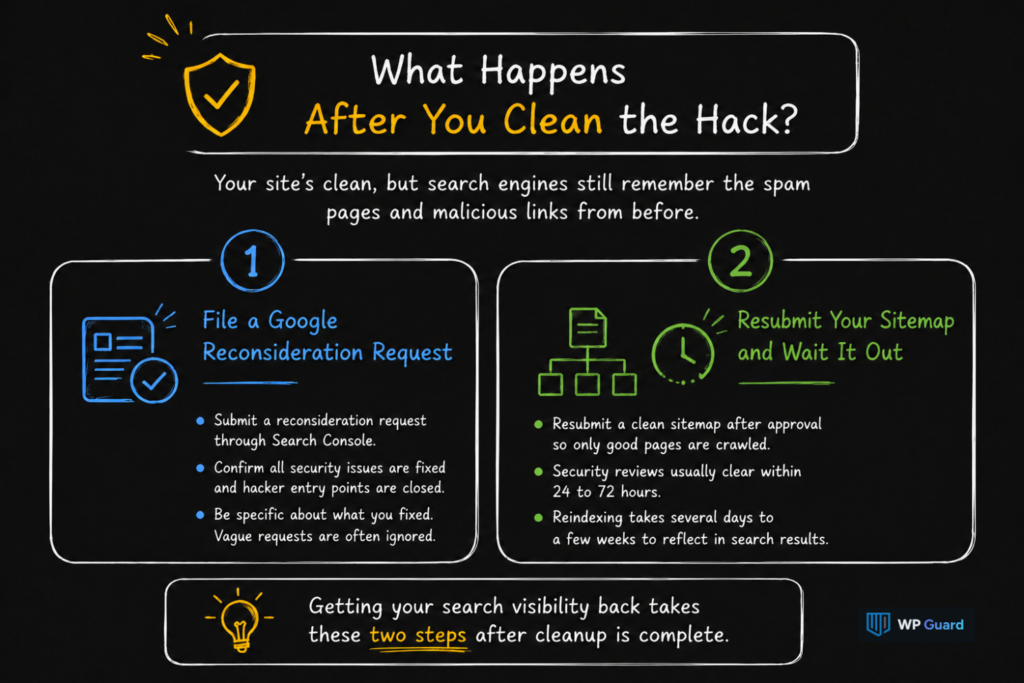
Now that your site’s clean, the focus shifts to getting Google to notice and trust it again. Search engines still remember the spam pages and malicious links from before, even after you’ve deleted them.
Getting your search visibility back takes two more steps once the cleanup itself is finished.
1. File a Google Reconsideration Request
First and foremost, submit a reconsideration request through Search Console once every flagged security issue on your list is fixed. This request tells Google you’ve removed the spammy pages and closed the gaps hackers used to get in.
If you skip a step here, Google’s review often bounces the request straight back with the same warning attached. We recommend being specific about what you fixed, since a vague request usually gets ignored during review.
2. Resubmit Your Sitemap and Wait It Out
Resubmit a clean sitemap once your reconsideration request goes through, so search engines crawl only the pages you approved. Security-related reviews often clear within 24 to 72 hours, unlike spam penalties that can drag on for weeks.
Your Google search results won’t update instantly even after approval, though. Reindexing suspicious websites and legitimate pages both take several days to a few weeks to settle.
What Stops Future Japanese Keyword Hacks for Good?
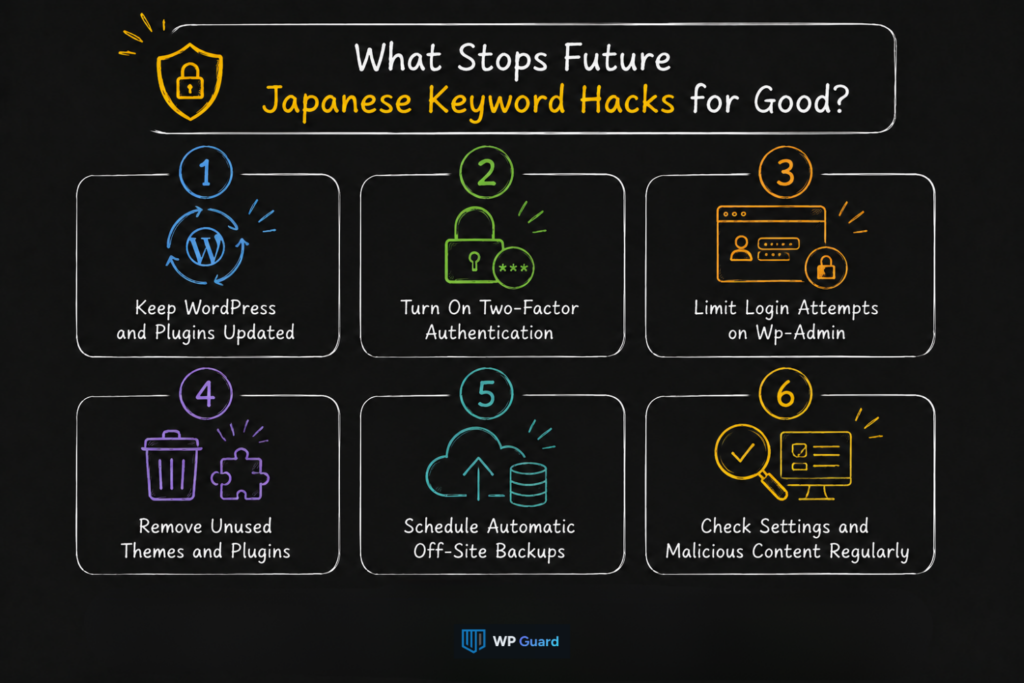
Staying current on updates, locking down logins, and watching your site closely significantly reduces the risk of future Japanese keyword hacks (this is the difference between a one-time scare and a repeat nightmare). Our experience with hacked WordPress sites shows the same weak points get exploited again if nobody fixes them.
Here’s a checklist to keep hacker access shut for good:
- Keep WordPress and Plugins Updated: Outdated plugins carry known security holes, and attackers scan for these constantly. Staying up to date closes all the potential gaps.
- Turn On Two-Factor Authentication: Enabling two-factor authentication can block most hacker access attempts on the spot. It asks for a second code, and this extra step makes it harder for attackers to access your account, even if they already have your password.
- Limit Login Attempts on Wp-Admin: A plugin can stop brute-force attempts, where bots repeatedly try different username and password combinations to gain access. Once locked out, those bots can no longer keep guessing.
- Remove Unused Themes and Plugins: Inactive themes and plugins still sit on your server, and each one adds to your site’s attack surface (more possible entry points for attackers). It’s a good practice to delete anything you don’t use anymore.
- Schedule Automatic Off-Site Backups: A full rebuild of your site will take days, and we don’t want to walk that path. That’s why you should store backups away from the main hosting provider. Restoring a clean version then takes only minutes.
- Check Your Site’s Settings and Malicious Content Regularly: Google’s URL inspection tool shows what search engines see. It catches user-redirect tricks and malicious content early. So review your site’s settings monthly and run additional checks after security incidents or major site changes.
A single missed update can undo every other step on this list within weeks. To fix the Japanese keyword hack for good, treat this checklist as ongoing work.
Staying Ahead of the Japanese Keyword Hack
A Japanese keyword hack damages your site as fast as the wind, but the fix doesn’t have to be complicated once you know where to look. Removing the injected pages is only part of the cleanup. You also need to close the security gap that allowed the hack to appear.
Your WordPress website deserves better than a repeat scare from the same keyword hack. So keep your updates current, your passwords strong, and your search engines happy with a clean sitemap.
If you want more ways to keep your site secure, visit WP Guard. There you’ll find other guides on WordPress security and malware prevention.
Frequently Asked Questions About the Japanese Keyword Hack
A few more questions come up often once the cleanup itself is done. These cover smaller details that didn’t fit neatly into the steps above.
Can Google Penalize My Site for Japanese SEO Spam?
Google doesn’t penalize your site for being hacked, but it’ll flag it with a security warning in search results. That warning can scare off visitors and hurt clicks even after you’ve cleaned everything up. Filing a reconsideration request removes the warning once Google confirms the fix.
Why Does the Keyword Hack Keep Coming Back After Cleanup?
A partial cleanup usually causes reinfection, instead of a new attack. If you miss one infected plugin, backdoor file, or old password, hackers walk right back in. You can run a full scan with updated security plugins after cleanup catches what a manual check often misses.
How Long Does It Take Google to Notice My Site Is Clean?
Google typically re-crawls a cleaned site within a few days to a couple of weeks. Search results won’t update instantly, even after you file a reconsideration request. In this situation, submitting a fresh sitemap through Google Search Console usually speeds up the recrawl.
Does Every WordPress Site Need a Security Plugin?
Yes, since manual checks alone rarely catch hidden backdoors or scheduled malware reinfections. A security plugin scans your files automatically and alerts you the moment something changes. We suggest pairing this with regular backups. That’ll give you a faster way back if a hack slips through anyway.