WordPress Malware Scanning: What to Use and Why
Your WordPress site got hacked, and you have no idea how it happened (a common scenario). Honestly, malware doesn’t always announce itself with a warning message. It can sit inside a single file for weeks, doing damage without you noticing anything’s wrong.
And that silent stretch is what makes WordPress malware so costly. It drops your rankings, slows your site down, and Google even flags your site before you even know it’s there. That’s exactly why WP Guard has put together this guide.
In this guide, you’ll learn:
- How these tools actually detect malicious code
- Which ones are worth paying for
- How to keep your site clean going forward
Stick around, and you’ll walk away knowing exactly what to look for.
Signs Your Site Needs a Malware Scan Right Now
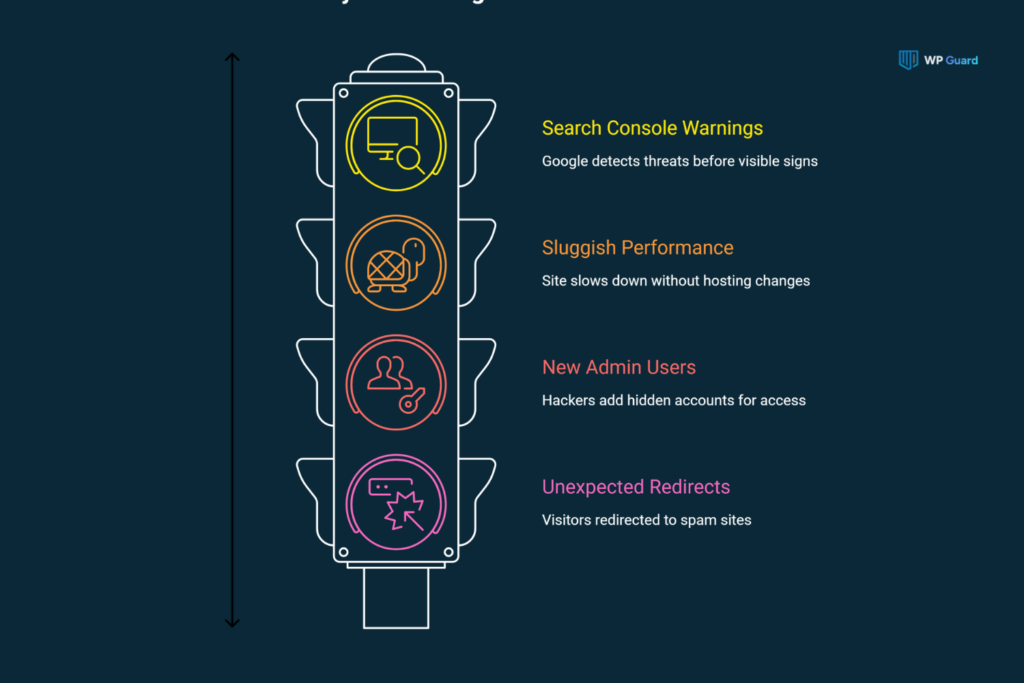
Slow load times and weird redirects are often the first clues when something’s wrong. But most site owners miss the smaller warning signs until traffic starts dropping.
A handful of red flags show up before things get worse:
- Unexpected Redirects to Spam Sites: Visitors open your site but suddenly get redirected to an unrelated or suspicious page. This is a classic sign that hackers may have injected SEO spam into your theme files.
- New Admin Users: Check your user list to verify it. Hackers often add hidden accounts to keep access even after you clean things up.
- Sluggish Performance: If your hosting plan hasn’t changed but your site slows down anyway, suspicious code running in the background might be a reason.
- Search Console Warnings: Google often catches hidden threats through malware or phishing alerts. In some cases, those warnings appear while the site still looks and behaves normally to you.
These security issues rarely announce themselves outright. So, if two or more of these sound familiar, you should check your files for suspicious entities. This way, the damage can’t spread further or directly hit your website visitors.
How a WordPress Malware Scanner Actually Finds Malicious Code
A WordPress malware scanner compares your site’s files against a database of known malware signatures to spot anything that doesn’t belong. You can think of it like a security guard checking IDs against a list of known troublemakers.
To flag the malware, most tools run two types of checks:
- Vulnerability Scanning: A vulnerability scanner analyzes your installed plugins and themes, and flags anything with a known security hole.
- File-Level Detection: The malware scanner itself digs through your files line by line, hunting for malicious code (e.g., backdoors, unauthorized edits, and database injections).
However, that malware detection only works if the signatures behind it stay current. From our own testing across client sites, tools that refresh their malware signatures every 24 to 48 hours identify malware and malicious scripts more quickly than ones that update weekly.
That said, no system catches everything (even the best ones slip up sometimes). Generally, false positives happen when a scanner flags legitimate code by mistake. And hackers often count on that gap to hide malicious software inside files that look routine enough to pass.
Core WordPress Files vs. Plugin Files: Where Malware Hides
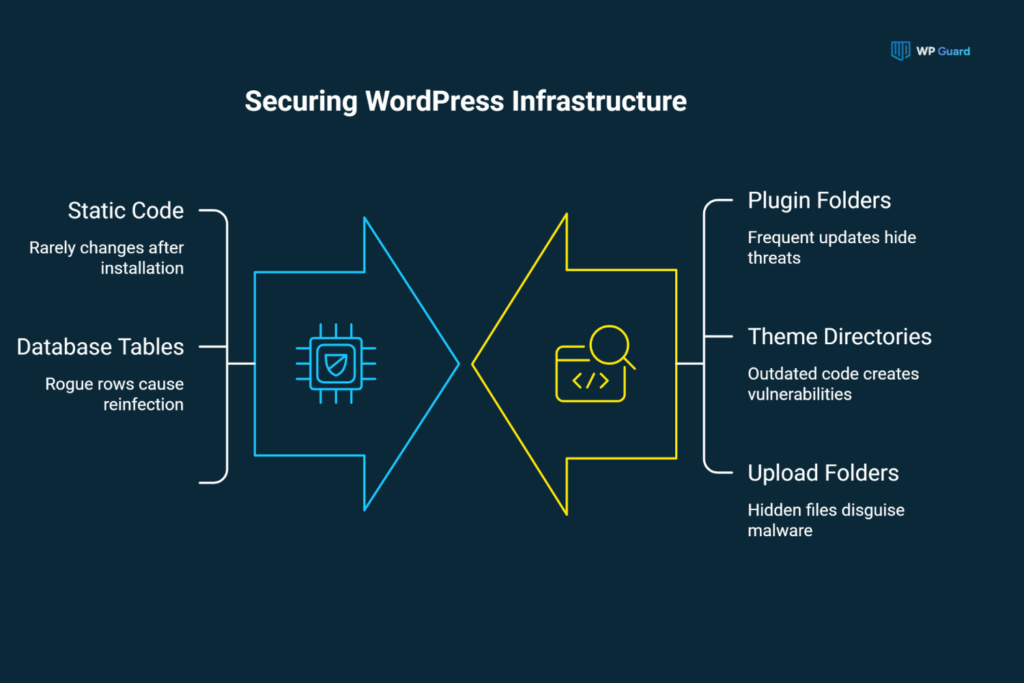
Not every file on your site carries the same risk. Malware tends to target specific areas, including core WordPress files, plugin folders, and themes. Therefore, each location shows different signs of infection.
Among them, two zones count the most when you’re hunting for an infection.
Why Core Files Are a Common Target
Your core WordPress files rarely change after you install WordPress, which is exactly why hackers love them. A single modified file can sit untouched for months (nobody thinks to check code files that “should” be static).
Fortunately, scanners catch this by comparing your WordPress core files against the official WordPress repository. If even one line differs, it flags modified core files right away.
Some infections also go a step further and reach your WordPress database. They insert a rogue database table row that keeps reinfecting your site even after cleanup.
Plugin and Theme Files Carry Their Own Risk
Plugin files and theme files update constantly, so hackers exploit that constant change to slip in unnoticed. In fact, outdated plugins are the most common entry points for infected files, along with hidden files buried in upload folders or disguised as image files.
That constant change makes cleanup trickier, too. A theme update might overwrite an infected file today, then a plugin update reintroduces the same gap next month. That’s why you need to run scheduled scans to catch new threats that appear after each update (a single cleanup rarely holds here).
Comparing a Malware Removal Plugin to a Dedicated Scanner Plugin
Scanners and malware removal plugins serve different purposes. For instance, scanners inspect your site for suspicious files, code changes, and known threats, while a malware removal plugin takes action on the threats a scanner finds. You can think of it like a detective versus a cleanup crew
A side-by-side view makes the differences easier to spot.
| Feature | Malware Removal Plugin | Dedicated Scanner Plugin |
| Primary focus | Detection plus automated cleanup | Detection and vulnerability checks |
| Cleanup method | One-click removal, often included in the free version | Usually requires manual review or an upgrade |
| Detection depth | Signature matching, sometimes limited | Broader checks across files, plugins, and themes |
| Best suited for | Sites needing fast, hands-off fixes | Site owners who want full scan results before acting |
| Risk of missed threats | Higher on deeper or custom infections | Lower, since flagged issues get reviewed instead of auto-cleaned |
A best malware removal plugin trades some depth for convenience, since one-click cleanup can miss infections that don’t match a known pattern.
Meanwhile, dedicated scanners focus more heavily on detection. They can inspect core files, plugin files, and other site areas for suspicious changes. The scan results then give you evidence to review and help you decide on the right cleanup method.
Many security plugins also include vulnerability checks alongside malware scanning. However, coverage varies between free security plugins and paid security plugins. So you should check which site areas each tool scans and how frequently the provider updates its detection rules
Note: A free plugin that checks plugins, themes, and databases may uncover threats that a core-file scan misses.
Setting Up Scheduled Scans So You’re Not Checking Manually
Scheduled scans run automatically in the background so you can catch threats without logging in every day. Regular checks can also expose new file changes or infections that appear between manual reviews.
But nail down the following two things before you turn on a scanner.
How Often Scheduled Scans Should Run
Most plugins let you automatically scan your entire site once a day, though monthly scans work fine for lower-traffic sites with fewer moving parts.
But the thing is, automated scans that run on local server resources can slow things down on cheaper hosting plans (we’ve seen shared hosting choke on this). That’s why we suggest you consider cloud-based scan options if your site feels sluggish afterwards.
How many times you run scanning isn’t the only focus, either. Some plugins bury their scan options deep in a settings menu, so confirm your site scan actually covers plugin folders and uploads.
Once you skip that check, you’ll end up trusting a scan that only ever looked at half your site.
What Happens When a Scan Finds Something
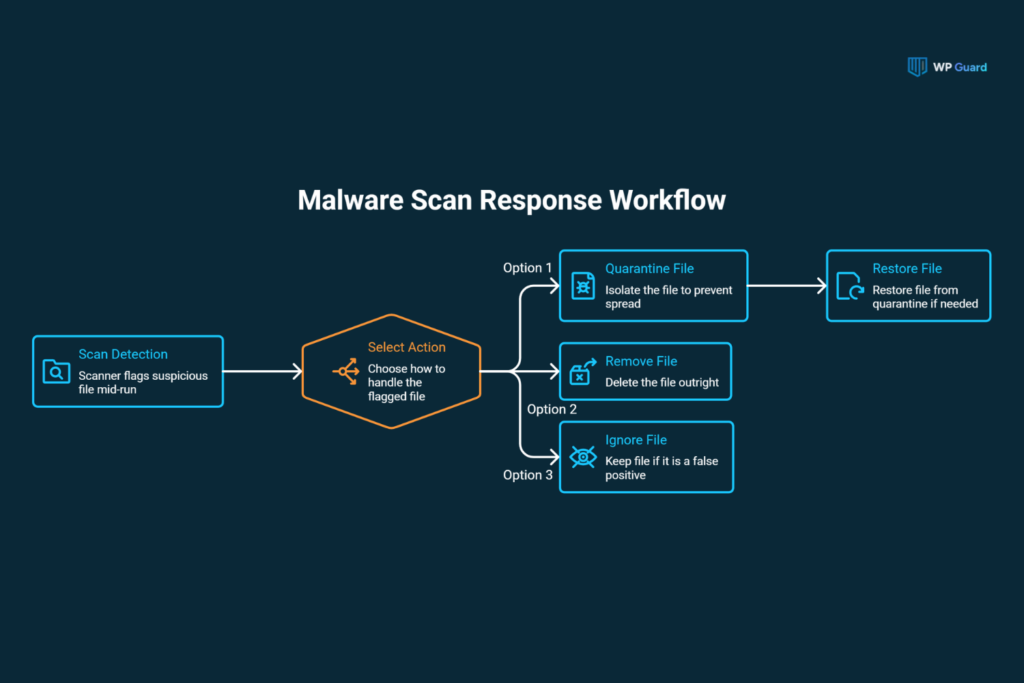
Most tools pause mid-run and flag the exact scan files involved the moment something suspicious turns up. Across dozens of sites, we’ve found that automatic scans paired with early detection catch most issues before they spread past a single plugin folder.
When the scanners flag something, you’ll usually get three options:
- Quarantine the file
- Remove it outright
- Ignore it if you’re confident it’s a false positive
Among them, quarantine is usually the safer option because it isolates the suspicious file instead of deleting it permanently. And if the scanner flags a legitimate file by mistake, you can restore it with one click rather than recover it from a backup.
Keeping Malware Definitions Updated: Why Outdated Scanners Miss New Threats
Outdated definitions mean your scanner is still looking for yesterday’s malware while today’s threats slip past. In this case, Wordfence‘s free version delays those malware definitions by 30 days. It sounds minor until you realize new WordPress malware strains show up weekly.
If your scanner uses malware definitions that are a month out of date, it may skip an entire cycle of security fixes during that period. That’s a full month of new strains your scanner can’t even recognize, let alone catch.
Beyond these, a single malware scan only tells you what’s happening at that exact moment (and that moment passes quickly). New malware, altered files, or recently identified threats can appear after the scan finishes.
For that reason, running a fresh malware scan right after every definitions update is a safe choice. The updated definitions can detect newly recognised WordPress malware that an earlier scan may have missed.
What to Do the Moment You Confirm a Hacked Site
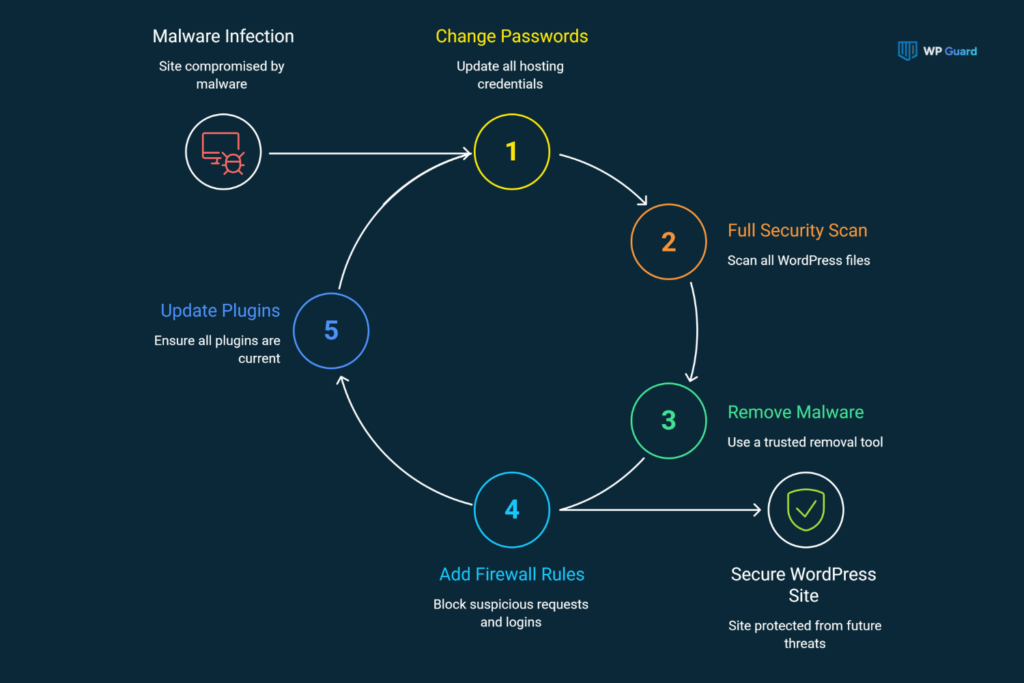
Isolate the site first, then bring in a scanner or professional to identify the full scope of the damage. In the meantime, quick isolation can limit further file changes, unauthorised access, and malware spreading to connected systems.
Once you’ve confirmed a hacked site, work through these steps in order:
- Change Every Password Immediately: Hosting, WordPress admin, FTP, and database credentials all need fresh passwords. Generally, weak or reused passwords are the key to how most malware infections start in the first place.
- Run a Full Security Scan: Scan every file in your WordPress installation rather than just the obvious suspects. That’s because partial scans miss reinfections hiding in plugin folders.
- Remove Malware Using a Trusted Tool: Manually deleting files without knowing what you’re doing can break your site further. Instead, let a proper tool remove malware safely.
- Add Firewall Rules: A firewall stops the same security threats from walking back through the same door once you’ve cleaned house. It can also block suspicious requests and repeated login attempts from reaching your WordPress site.
Quick Tip: After cleanup, check every plugin for pending updates. An outdated plugin may leave the same vulnerability, which gives attackers another route into the site.
Using WP-CLI to Scan for Malware From the Command Line
WordPress command-line (WP-CLI) provides you with an interface to run a security scan without ever logging into your WordPress dashboard. It’s a tool that programmers built for managing your WordPress installation directly from your server’s terminal.
For developers or site owners comfortable with SSH access, this method runs faster than plugin-based scanning. In particular, it works on larger sites where dashboard scans tend to time out.
A basic command checks your core files against the official repository:
| wp core verify-checksums |
This prints scan results straight to your terminal, flagging any core file that doesn’t match the official version (no visual dashboard means no hand-holding).
To validate, you’ll need to read raw output and know what a mismatch actually means. But for a single WordPress website with occasional issues, that’s manageable.
Choosing Between Free Security Plugins and a Paid Malware Removal Plugin
Free security plugins cover the basics well, but they usually fall short of what a dedicated malware scanner plugin offers. In practice, dedicated tools scan more areas of the site and provide stronger options for investigating suspicious files after they find a threat.
The split between tiers usually lies in three things:
| Feature | Free Tier | Paid Tier |
| Detection depth | Core files only | Core, plugin, and theme files |
| Response speed | Logs activity for later review | Firewall blocks a hacking attempt instantly |
| Cleanup support | Manual removal required | Automated cleanup included |
From working through dozens of security incidents, we’ve found the difference between free and paid options is usually about response time. Most security plugins on the free tier do a fine job spotting problems. Meanwhile, other security plugins close the gap between detection and actual removal.
Verdict: If keeping your WordPress security tight is non-negotiable, a best malware removal plugin with built-in cleanup keeps your WordPress site safe with less manual work.
Your Next Scan Shouldn’t Wait
A reliable malware scanner is mandatory for protecting your WordPress site, with options ranging from free plugins to managed services. The tools differ, but the goal stays the same: “Catch threats before they spread”.
Most infections don’t announce themselves right away. By the time you notice a slowdown or a strange redirect, the damage has usually already started spreading through your files.
So don’t wait for those warning signs to show up. Run a scan with WP Guard’s free scanner plugin today, and see exactly where your site stands before anything gets worse.
Quick Answers on WordPress Malware Scanners
A few common questions come up again and again, so here are quick, direct answers.
1. Do I need a malware scanner if I already have a firewall?
Yes. A firewall blocks malicious traffic from reaching your files, while a scanner detects threats that have already entered the site.
2. How often should I run a malware scan?
Daily is ideal for active sites. Weekly or monthly works for low-traffic sites with fewer updates.
3. Can a free malware scanner fully protect my site?
It covers the basics, but most free tiers lack automated cleanup and delay signature updates by weeks.
4. Will scanning slow down my site?
Cloud-based scanners run off-server, so they won’t strain your hosting. But local scanners can slow things down on cheaper plans.
5. How fast can a scanner detect malware after infection?
With daily scans and current signatures, most tools detect malware within 24 hours of it landing on your site.